Frequently Asked Questions
What is OneDrive, and why are we moving? OneDrive is a cloud-based storage service. Unlike the U: Drive, which requires you to be on the office network or a VPN, OneDrive allows you to access your files from any company approved device with an internet connection. It also includes better version recovery and real-time collaboration features.
How do I start using OneDrive?
See details in the article below:
What happens to my U: Drive? At the time of migration, your U: drive will be disconnected in File Explorer and then retired after a couple of weeks. You should move your active projects to OneDrive as soon as possible to ensure you have full access to them.
Is my data safe in the cloud? Yes. OneDrive uses enterprise-grade encryption both while your files are moving (in transit) and while they are stored (at rest). It is often more secure than a local drive because it is backed up automatically by Microsoft.
Accessing Old Files
How can I retrieve a missing file that was in my U:/ drive? If you realize a file didn't make the jump, you can manually retrieve it by entering the following path into a File Explorer window address bar:
FMHC & FFL - \\earth.ffl.net\users\[your username]
Warsaw - \\wclewarfs01.ffl.net\users\[your username]
First Mutual Bank - \\wclefmbfs01.ffl.net\users\[your username]
Martinsville First - \\wclemarfs01.ffl.net\users\[your username]
Blue Grass Federal - \\wclebgfs01.ffl.net\users\[your username]
Note: Please replace
[your username]with your actual ID (do not include the brackets). Be aware that there is a separate server name for each bank. These files will remain available for 30 days after migration, after which the U: drive servers will be decommissioned.
Desktop & Saving Files
Can I save documents to my Desktop now? Yes. This is one of the biggest benefits of the switch. Any files saved to your computer’s Desktop will automatically be saved and synced to OneDrive. It is now safe and permissible to save files to your Desktop as they will be backed up regularly.
What files are not permitted to be saved in OneDrive? The following file extensions are not allowed to be uploaded to OneDrive..." .exe (applications), .iso, and emails (.pst, .ost, .msg, .eml)
How do I make sure my Desktop is actually backing up?
To validate that this is working properly after your migration date, open your OneDrive settings [blue cloud icon by the date/time in the bottom right corner of your screen ? gear icon ? Settings], “Manage backup” button, and ensure Desktop is enabled. Screenshots of this full process may be found in the middle of this KB article.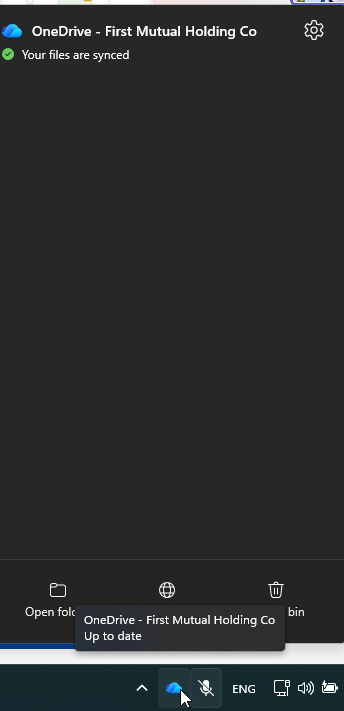
Accessing Teams Files
You can now access files saved in Microsoft Teams via File Explorer. See this article for more details:
OneDrive Quick Start Guide
1. Finding Your Files
Open File Explorer (the folder icon). In the left-hand sidebar, you will see a folder titled OneDrive - [Company Name]. Everything moved from your U: Drive is now located here.
2. Understanding the "Status" Icons
OneDrive saves space on your computer by only downloading files when you need them. Look for these icons next to your file names:
☁️ Blue Cloud: The file is safely in the cloud and not taking up space on your computer.
✅ Green Check: The file is downloaded to your computer and available offline.
3. Sharing vs. Sending
Stop sending large email attachments! To share a document:
Right-click the file in your OneDrive folder.
Select Share.
Type the recipient's name and hit Send. You can even see when they’ve opened it!
Was this article helpful?
That’s Great!
Thank you for your feedback
Sorry! We couldn't be helpful
Thank you for your feedback
Feedback sent
We appreciate your effort and will try to fix the article