Welcome to OneDrive! Think of it as your personal "hard drive in the cloud." It allows you to save your files securely and access them from your work computer or mobile phone.
Here is a quick-start guide to help you get comfortable with the basics.
1. Getting Started
To begin, you need to know where your files "live."
- Online: Go to OneDrive.com and sign in with your work Microsoft account.
- On your PC: Open File Explorer. You will see a blue cloud icon labeled OneDrive in the left-hand sidebar. Anything you drag into this folder is automatically backed up.
2. Uploading and Creating Files
There are two easy ways to get your documents into OneDrive:
- Drag and Drop: If you are using the web version, simply drag a file from your computer screen and drop it into the browser window.
- The "New" Button: Click + Add new (on the web) to create a brand new Word document, Excel spreadsheet, or PowerPoint directly in the cloud.
3. Understanding the Sync Icons
When looking at your files in the OneDrive folder on your computer, you will see small icons next to the file names. These tell you the "status" of your file:
- Blue Cloud: The file is "Online Only." It isn't taking up space on your computer, but you need internet access to open it.
- Green Circle with Check: The file is "Locally Available." You’ve opened it, and it's now downloaded to your device so you can edit it offline.
- Solid Green Circle: This means you have right-clicked the file and selected "Always keep on this device." It will always be there, even without internet.
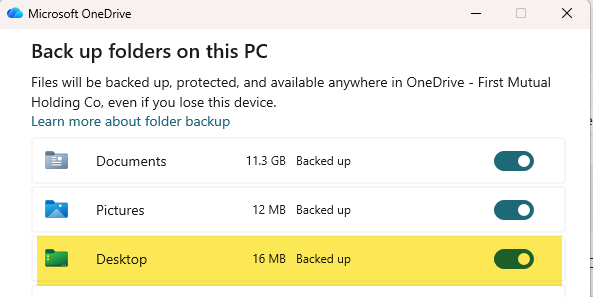
Syncing up Desktop files:
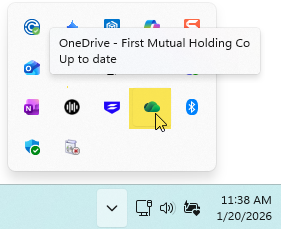
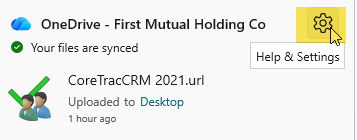
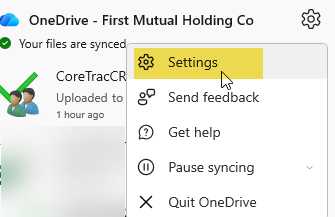
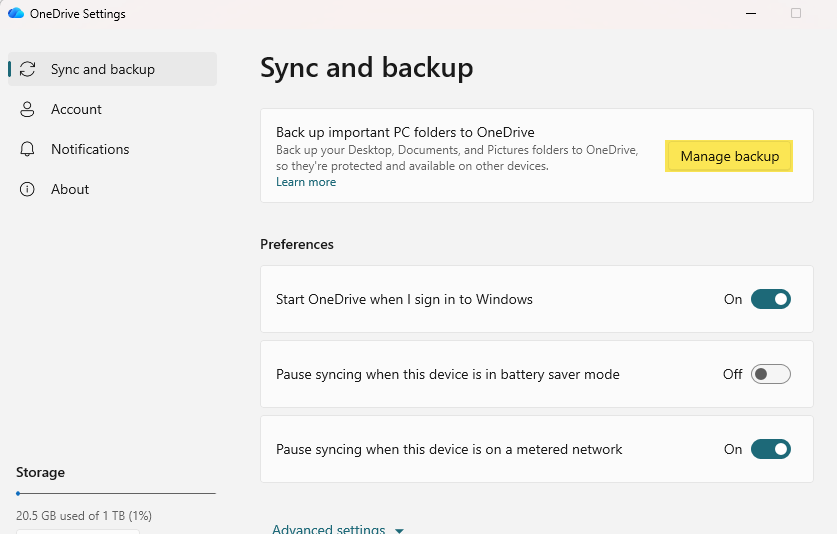
It is now safe and permissible to save files to your Desktop as they will be backed up regularly into OneDrive. To ensure this is occurring, check your OneDrive settings as shown below.
4. Sharing Files (No more email attachments!)
Instead of emailing a copy of a file (which creates multiple versions), you can send a Link.
- Right-click a file and select Share.
- Choose who can see it: "Anyone with the link" or "Only people in my organization."
- Decide if they can Edit the file or just View it.
- Click Send or Copy Link.
Pro Tip: When you share a link, everyone works on the same version of the document. You can even see their cursors moving in real-time!
5. Version History & Recycle Bin: Your Safety Nets
Did you accidentally delete a paragraph or make a mistake in a spreadsheet? OneDrive saves your work automatically.
- Right-click the file (either online or in File Explorer).
- Select Version History.
- You will see a list of previous saves. You can click on an older version to Open it or Restore it to its original state.
Did you accidentally delete a file? You can check your OneDrive Recycle Bin to restore the file for up to 90 days after deletion.
6. Access on the Go
For employees who already use Outlook and Teams on their smartphones: Download the OneDrive app (iOS or Android). This is incredibly useful for:
- Viewing a document while you're away from your desk.
- Scanning: Use the camera icon in the app to "scan" paper receipts or whiteboards directly into a PDF.
Was this article helpful?
That’s Great!
Thank you for your feedback
Sorry! We couldn't be helpful
Thank you for your feedback
Feedback sent
We appreciate your effort and will try to fix the article