In 2022, FMHC began replacing the TPG B780 receipt printers with Digital Check brand (same company that makes our Teller Capture equipment, like check scanners) ReceiptNOW Elite receipt printers. Follow the steps below to install the printer.
- Make sure the printer is plugged into the computer and powered on. Also ensure that no other receipt printer (e.g. TPG) is plugged in at the same time.
- In G:\Shared\AppFiles\ReceiptNOW Elite Printers\Install files, run Setup.exe, select the second SRNELITE model (not the 2PTR model), Typical setup.
- In ReceiptNOW Elite QuickPrint.exe (launch from the Start menu), you can print a sample receipt to verify the printer is connected and working properly.
- Launch Cleartouch --> File menu --> Printer Setup. Change the Receipt printer row to the SRNELITE(U)1 printer type Ithaca, and font Arial. Click Update Printer(s) at the bottom to save changes.
- To install the bank logo to appear on receipts (detailed instructions with screenshots may be found here: G:\Shared\AppFiles\ReceiptNOW Elite Printers\Printing-Headers-Footers-and-Watermarks-KJ.pdf)
- Open the SRNELITE(U)1 printer in Windows Devices & Printers/Printers & Scanners --> Printer Properties --> Download tab --> Add button --> select the appropriate affiliate's bitmap logo file (located here: G:\Shared\AppFiles\ReceiptNOW Elite Printers) --> click to highlight the logo under the Logo Download section --> click the Transformation radio button then Download All button.
- NOTE: Doing this step is only USER-SPECIFIC, meaning each user would have to enable the logo in their own Printing Preferences. Skip this step and proceed to #3 to install for ALL USERS. (Back in Printer Properties --> General tab, click the Preferences button --> Operation tab --> Start of Document button --> at the bottom, select Logo1 from the dropdown, align Centered, then press OK.)
- Back in Printer Properties --> Advanced --> Printing Defaults --> Operation tab --> Start of Document button --> at the bottom, select Logo1 from the dropdown, align Centered, then press OK.
- You can print a Windows test page in Printer Properties to verify the logo prints successfully on the top.
- At this point, the end user can verify they can print receipts successfully from CT Teller. If the end user is not available, you can print a test receipt from a previous transaction in CT Teller.
- In CT Teller: Teller Functions menu --> Teller Journal --> Advanced Search --> select a date, branch, and teller number to review another teller's past transactions. Select a row to highlight the transaction, then Reprint Documents to send a receipt from CT as a "live" test.
Note: If receipts are not printing at all from Cleartouch, but the test pages outside of CT are working, set the PrintHost.exe to Windows 7 compatibility mode.
If nothing is printing from Cleartouch OR Windows, but the test print in the utility works (Step #3), then verify you have the correct USB port selected for the printer in its Windows Printer Properties.
CT ADMIN:
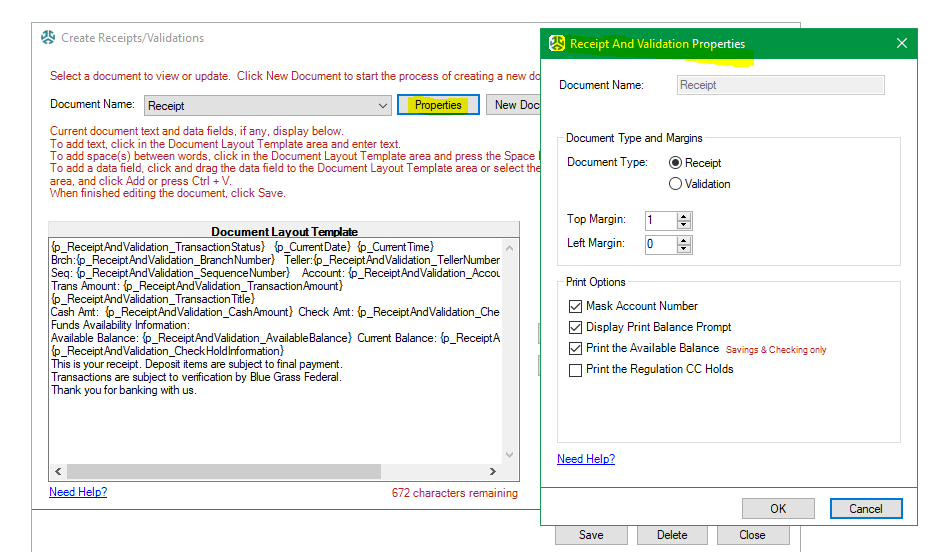
If the margins are off on receipts, we can adjust this in Cleartouch Admin --> Teller Options --> Create Receipts/Validations:
Was this article helpful?
That’s Great!
Thank you for your feedback
Sorry! We couldn't be helpful
Thank you for your feedback
Feedback sent
We appreciate your effort and will try to fix the article