- On the workstation requiring the virtual printer, copy the virtual printer install files directory from G:\IT\Apps\Nautilus (Hyland OnBase) Virtual Print Driver to C:\OnBase
- Create a directory locally for .tif images (i.e. C:\OnBasePrintJobs)
- Double click hsiprn.exe to configure the spool directory. (Ignore any message about missing DLL files.)
- Click the Browse button and point to the spool directory (i.e. OnBasePrintJobs).
- Select the option ‘Automatically create a unique name for each print job’. Click OK when finished.
- Click OK on the message ‘The printer configuration was changed successfully’.
- Run setup.exe in the vpd64 directory to install the Virtual Print Driver. This should install the printer in Windows Devices & Printers.
- Once the printer has been added, copy the file ‘obpmon.exe’ to C:\Windows\Sytem32 (must be on every workstation performing the ‘Imports’).
- From the Start>Run box, register the executable using the following command: obpmon /RegServer /driver hyland
- Place the following switch on the Nautilus Client –PRINTMON (properties of client shortcut). This places the print monitor icon in the task bar when the Nautilus Client is opened.
Importing Files into Nautilus:
- In order for ‘printed’ document to be imported into Nautilus at the time of printing the Nautilus Client must be open and running with the -PRINTMON switch.
- To print/import, open a document, or what ever you desire to import, and attempt to print the document. When printing, be sure to select the Hyland Printer. A spool file should be created as a TIFF file in the directory you specified. Once complete, you should see the normal Nautilus Client import dialog box where you can specify your document type and keyword values. Index the document as desired and click the Import button to bring the document into Nautilus.
Note:
- Be patient waiting for the spool file to finish being created. The import dialog box will not appear until it's completed. Depending on what is being printed the spool file may take awhile to complete. If you click the Cancel button during the Import/Indexing phase the spool file will be deleted.
- If the Nautilus Client is not running while you print using the Virtual Printer, a file will still be created, but you'll never be automatically prompted to Import the file. The file must then be manually imported, which can be done at any time.
Nautilus Unity Configuration
For the Unity Client to use the Virtual Print Driver, a couple of changes are needed in the Unity config file (C:\Program Files (x86)\Fiserv\Nautilus\Unity Client\naunity.exe.config):
Set "ServiceMode enabled" to TRUE, and "Virtual Print Driver enabled" to TRUE.
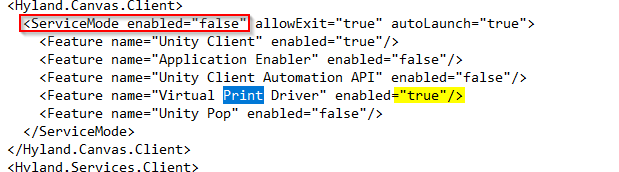
Close the Unity Client, delete the folder in C:\Users\[username]\AppData\Local\IsolatedStorage, then re-launch the Client. Documents should leave the C:\OnBase Printer Spool directory as they go into the Unity Client.
Was this article helpful?
That’s Great!
Thank you for your feedback
Sorry! We couldn't be helpful
Thank you for your feedback
Feedback sent
We appreciate your effort and will try to fix the article