Every so often the Cleartouch certificate will have to manually be installed on a bank computer (it is usually installed as part of the standard image).
This usually needs to happen when users receive an error message stating: "There is a problem with this website's security certificate. The security certificate presented by this website is not secure."
Install from Location: G:\Shared\AppFiles\FiservBrookfieldCA-Base64.cer
Instructions:
RDP into the PC that needs the certificate installed.
Start Menu and search mmc.exe
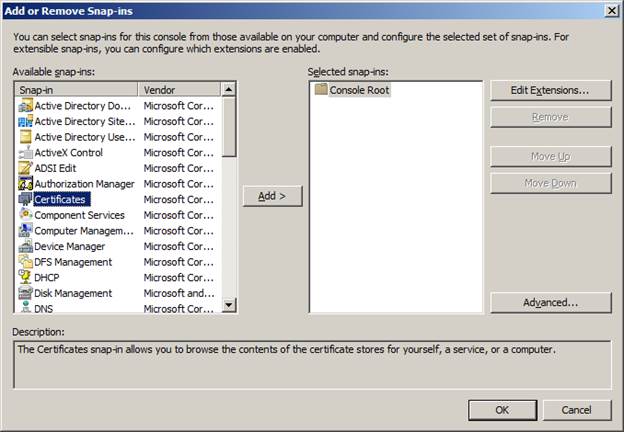
Select File, Add/Remove Snap-in…
Select Certificates and click on the ADD button.
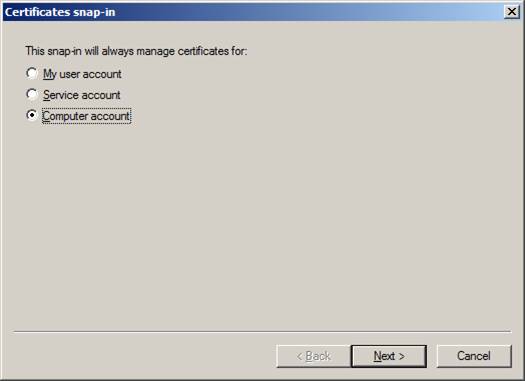
Select Computer account.
Select Local computer: (the computer this console is running on)
Click Finish and then OK.
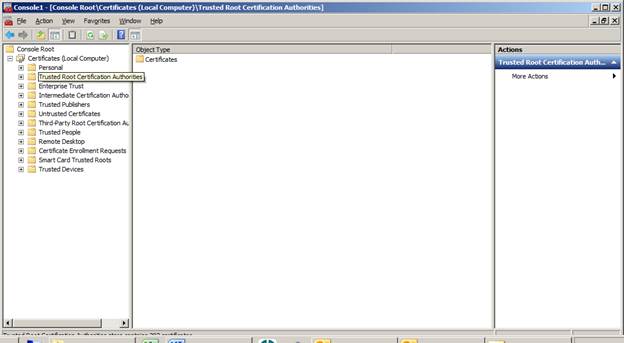
Click on the arrow next to Certificates (Local Computer)
Click on Trusted Root Certification Authorities
On the right side of the window under Actions, click on More Actions, All Tasks, Import.
Click Next when the Wizard starts.
Browse the File name field to: G:\Shared\AppFiles\FiservBrookfieldCA-Base64.cer
(also install G:\Shared\AppFiles\Fiserv_CA_SHA256.cer)
Click on Open.
Click on Next and continue with default settings.
Finish.
Was this article helpful?
That’s Great!
Thank you for your feedback
Sorry! We couldn't be helpful
Thank you for your feedback
Feedback sent
We appreciate your effort and will try to fix the article