In your AT&T account, where you see Admin Portal in the top right, change to My Extension:
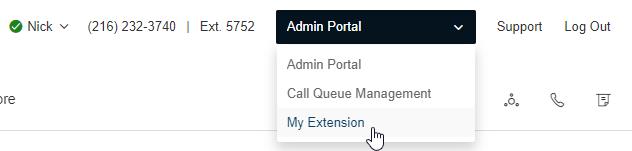
(If you are setting up buttons for another user, remain in the Admin Portal, go to Users, find & click on the user, then you will already be in the "Settings" section - proceed with the following steps at "Phones & Numbers.")
Then go to Settings --> Phones & Numbers --> Presence button.
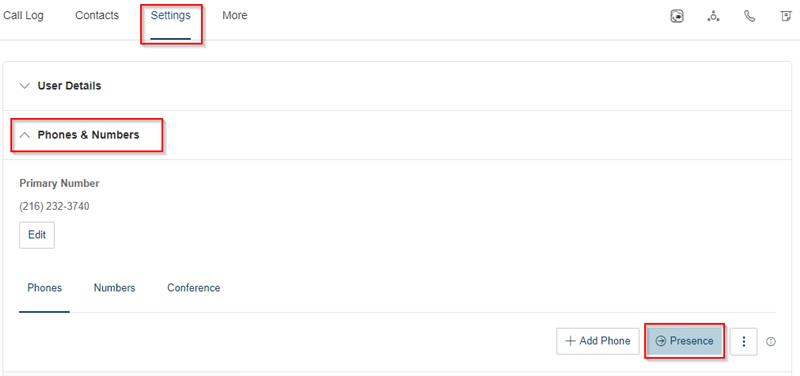
Then, in the list that appears, basically each numbered row is a separate button. Click Assign Extension, search for & select the desired user, then click Done.
Was this article helpful?
That’s Great!
Thank you for your feedback
Sorry! We couldn't be helpful
Thank you for your feedback
Feedback sent
We appreciate your effort and will try to fix the article