HR will inform IT of an employee separation via a Service Desk ticket and the user's supervisor must submit a User Removal Form to the Service Desk. The ticket containing the email notification from HR can be closed after the User Removal Form ticket is opened by the manager.
Overview/Highlights:
- Disable user's access to all systems
- Set up forwarding of calls/emails (if manager requests)
- Verify return of company equipment
- Document all completed steps in the Service Desk ticket (see User Removal Checklist template attached)
Steps for Initial Removal (immediately upon separation)
For Remote Terminations - In Duo, delete the user's cell phone and then the user account. After that, terminate the user's VPN connection on the firewall. If the session keeps reconnecting after that, the user's public IP address can be blocked on the firewall to prevent re-connection from that location.
In Sophos Live Response, you can do a gpupdate /force on the user's PC after their password has been changed in AD. You can also initiate a shutdown of the computer. Contact IT Engineering - a Sophos admin can quarantine the machine to prevent future login attempts.
Active Directory
If the manager has requested email forwarding, move user to the Terminated_with_Email OU in AD.
If the manager has requested NO email forwarding, move user directly to the Former Employees OU, then see the "Steps for Final Removal" section below.
Right-click on the user and change the password.
Right-click on the user and select Properties --> Member of tab. Remove all groups except for Domain Users (and the O365 MS license group, if email forwarding was requested).
(Note: If the user is in a unique role, i.e. not a teller, you may need to save the list of AD group membership for future reference, in case someone is hired to fill the user's position at a later date. To do this, if their list of access is not long, you can simply screenshot the list in the Member Of tab. Alternatively, log into Access Auditor to run and export an Ad Hoc Report. Upload this information to a note in the removal ticket.)
Under the Organization tab:
- Remove/clear the manager.
- If the user was a manager/supervisor, reassign their direct reports to the new manager/supervisor (check org chart in Paylocity if needed). If a new manager has not yet been appointed, you can temporarily assign them to the next level manager until a new manager is in place.
In the General tab --> Description field, clear out the Employee # and enter the date of separation in the format yy/mm/dd. Also, if email forwarding was requested, add "Email forwarded to [user name of email recipient]."
If desired, under the Attribute Editor tab, set the "msExchHideFromAddressLists" attribute to True to hide the user from the Global Address List / address book in Outlook.
Email, Phone, and Personal Files
Set up email forwarding in O365. To free up the E3 license, you can convert the user to a shared mailbox in the Exchange Admin Center.
Set up call forwarding in the AT&T admin portal.
- To kick the user out of any existing Office@Hand login sessions (including on their mobile phone), you can force log them out here:
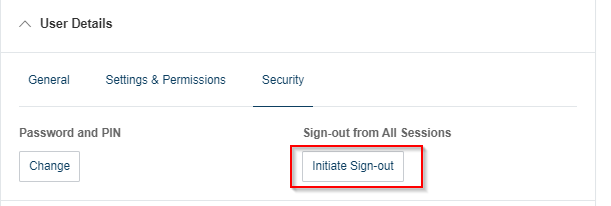
- To prevent them from re-logging in, you can change the password & PIN. If no call forwarding is requested, you can also disable the extension completely. It can be re-enabled when it needs to be assigned to a new employee.
If the user had Intune on their cell phone, make sure to Retire (NOT "wipe") their phone in MS Endpoint Manager, then remove from the Intune Users group in Azure AD/Entra.
Grant OneDrive permission to another employee: https://fmhc.freshdesk.com/a/solutions/articles/47001284459 At the final removal of an employee, the user's manager should automatically receive an email from Microsoft with a link to their OneDrive for future access until the retention period expires.
Other Apps
Proceed with removing the user from any other programs (Cleartouch/Passport, WireXChange, etc.).
Cleartouch: Tasks --> Cleartouch Administration --> Define Users --> search for user name. Highlight and copy the user's employee number. Select Delete and click Yes when prompted.
If a back office/non-branch user, update the appropriate Cleartouch license spreadsheet to list their CT license as "Available."
Passport: Paste the user's employee number in the appropriate field. Select Delete option from dropdown and click Yes when prompted.
Update the CT Teller Number list (located in Teams: Fiserv Support team --> General channel --> Files tab).
Freshdesk: Check to see if the employee had any open/pending tickets. If so, determine if they can be closed or if they need their contact changed to another employee, then delete the user as a contact in Freshdesk.
ADSSP: Un-enroll the user in ADSelfService Plus (Reports tab --> Enrollment Reports --> Enrolled Users Reports).
WireXchange: Assign the ticket to the appropriate WireXchange administrator for removal.
Encompass and other lending apps, as well as CoreTrac/CRM and Prologue: Assign the ticket to Enterprise Systems for removal
Remaining Steps
- Update the Service Desk ticket
- Assign ticket to Info Security/Jon Densmore to run a final Access Auditor report, verifying that all access has been removed. Jon will then assign the ticket back to you.
- Close the ticket, then set a calendar reminder for the date of forwarding expiration and re-open the ticket at that time. Email the user's supervisor a few days in advance to let them know the account will be disabled on (date).
Steps for Final Removal (after forwarding period expires)
On the date of forwarding expiration:
- Disable email forwarding (O365) and call forwarding (AT&T Office@Hand)
- Remove the O365 - Microsoft E3 License security group from the user's account in AD
- BEFORE you disable or move the account in AD, check the O365 Admin portal to verify that the change syncs and the Microsoft E3 license is removed
- Move user to Former Employees OU and right-click the user to Disable the account
- In the O365 Admin portal, make sure to check the Deleted Users list to verify all licenses have been removed (they are expensive)
- Upload the completed User Removal Checklist (see template attached) to a note in the ticket, add any final notes, then close the ticket
Return of Company Equipment
Many employees are hybrid or fully remote and may need to return work equipment they have at their home office. There are several options they can choose from to return the equipment:
- Porch pickup (if they are local and live along General Services' mail route)
- Branch dropoff (if they are local / live near a branch)
- FedEx shipment (boxes can be sent to their home with a prepaid shipping label, charged to the bank's FedEx account)
- FedEx dropoff (employee can visit a local FedEx location and the staff there can help them package and box up the equipment appropriately, then charge to the bank's FedEx account)
IT may receive other equipment/technology that belongs to other departments:
- Send desk keys to the user's manager
- Send access cards to Security
- Software access tokens may need to go to Deposit Operations or the CRC (wire tokens remain with IT)
- "HID" tokens should be interofficed to Barb Price in Deposit Ops with a note of who they came from
Six Months after Final Removal
- Delete the disabled user from Active Directory
Was this article helpful?
That’s Great!
Thank you for your feedback
Sorry! We couldn't be helpful
Thank you for your feedback
Feedback sent
We appreciate your effort and will try to fix the article