CoreTrac (CRM) contains a large amount of non-public personal information (NPPI) about FFL customers and our employees' interactions with them. A change was implemented in 2016 to limit access to the system to only those users that have been identified as needing it.
An AD group called CRMUsers contains all active CoreTrac users. Only members of the CRMUsers group are able to access CoreTrac. When a user who is not in the CRMUsers group attempts to log in to CoreTrac, they will be prompted for a user name and password. When they enter their credentials, they will not be able to log in. An employee who claims to need access to CoreTrac will need to have a User Change Form submitted by their manager for the Service Desk to grant access.
New Users that need CoreTrac Access
1. IT Service Desk receives a User Add or Change form and adds them to the CRMUsers group and the branch's CRM group in AD
2. As of March 2024, Enterprise Systems creates their user ID in CoreTrac
3. User may run the CoreTrac CRM Shortcut Install (intranet --> IT tab) to create a desktop shortcut to the site so they can log in
On your desktop, click on CRM CoreTrac – Resource One Link
Scroll down the left side of the page and select ADMINISTRATION
Scroll down the left side of the page and select USERS
Click on Update
Select New User
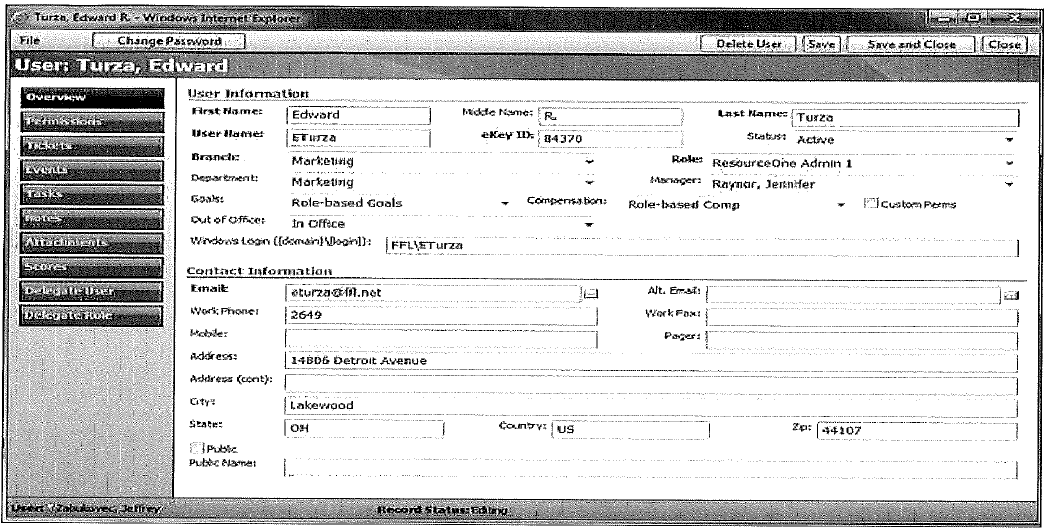
1. Enter FIRST NAME of new employee
2. Enter LAST NAME of new employee
3. Enter User Name login id - e.g. Eturza
4. Enter "eKey ID" - provided by HR Department (employee number) - e.g. 99939
5. Go to STATUS - Drop Down box - click on ACTIVE
6. In PASSWORD box enter the following: 12345678a
7. In CONFIRM box enter the same password: 12345678a
8. In BRANCH box - Drop Down - select employee department - e.g. Accounting/Branch
9. In DEPARTMENT box - Drop Down - select department - e.g. Fraud Alert Lakewood (should always start with Fraud Alert)
10. In GOALS box - Drop Down - select "Role-based Goals."
11. In COMPENSATION box - Drop Down - select "Role-based Goals"
12. In WINDOWS LOGIN enter the following format e.g. FFL\Eturza
13. In EMAIL box enter employees email address: e.g. Eturza@ffl.net
14. Go to top of the screen and click on SAVE
15. Go to Manager's box - Drop Down - select employee's manager - may need to check with HR
16. Go back to top of screen and click on SAVE & CLOSE - this completes the addition of the employee
User Separation
1. User Removal Form received by Service Desk
2. Service Desk removes them from CRMUsers group in AD to remove their access from the system and disables their account in CoreTrac
TO DELETE A TERMINATED EMPLOYEE FROM SYSTEM (as the "Delete User" button is still not working as of February 2024)
1. Open CRM CoreTrac
2. Go to ADMINISTRATION and select USERS
3. At top of screen, go to "search" box and type in the employee's LAST name
4. New screen appears - click on people icon
5. Employee information screen appears - Go to STATUS box
6. Drop Down to INACTIVE and click - This completes the deletion of the employees
7. ACTIVE and click - This completes the deletion of the employees
8. In EMAIL box enter email address: e.g. I@ffl.net
CoreTrac Files Updates
There is a second portion of CoreTrac user maintenance that is handled either by the Digital Banking team and/or the CRC. The following data files need to be updated:
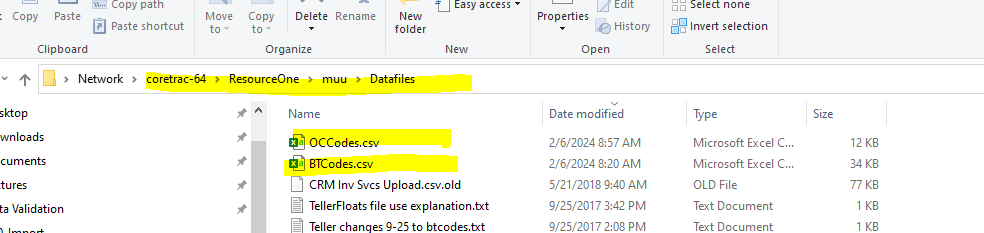
The files are updated manually when a new user is added to CRM.
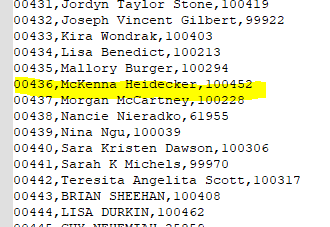
The OCCodes.csv file has the user's officer code (these are assigned by Digital Banking - the following spreadsheet is updated nightly: \\earth\groups\Shared\Officer Codes\000_Loan_Officer_Names.xlsx), name, and employee number. The employee number is also used when adding them to CRM.
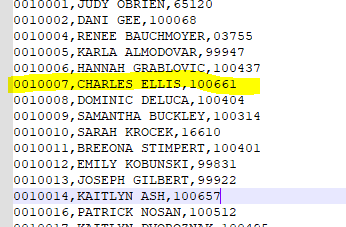
The BTCodes.csv has the list of branches and tellers in it. A teller could be in it more than once if they work on multiple branches. Non-Retail/branch employees generally do not need to be added to this file. The BTCodes file is for the processing log and helps with account matching.

CoreTrac Vendor Information & Support
CoreTrac is currently provided by Avolin. The technical support team can be reached via this portal: Sign in to IgniteTech Global Support (zendesk.com) or by emailing: coretracsupport@avolin.com
Unfortunately, our contract does not include phone support, so they must be contacted online, and support response times may vary.
Was this article helpful?
That’s Great!
Thank you for your feedback
Sorry! We couldn't be helpful
Thank you for your feedback
Feedback sent
We appreciate your effort and will try to fix the article