As MFPs age, they may start to break down more frequently, requiring costly repairs, if the parts for an older model are even available anymore. DEX Imaging, our printer vendor, may recommend a printer be replaced based on age and frequency of service calls.
If the branch/department manager approves of the cost, an MFP can be replaced at any time. Our DEX Imaging rep can provide a current quote, then send over the sales order for signature by the Chief Technology Officer.
When returning the signed sales order, DEX Imaging will also need a Pre-Flight Network Configuration Form filled out and sent to them, so that the new printer can be set up as much as possible before being deployed to the work location. Usually, a new printer will use the same IP address as the old printer being replaced.
Before the old machine is removed, we can remote into it and back up the Address Book to save the entries: Device Management --> Address Book --> Maintenance --> Backup button. This will download a file containing the Address Book entries. Go to the same screen on the new MFP and hit the Restore button to upload this file. (DEX has been handling this step for us recently.)
If the Pre-Flight form is filled out correctly (you can use an old one as a template for new printers), these are the only two settings that will need to be changed on the new printer:
- Setting the local Administrator password
- Setting the SMB credentials to allow scanning to folders (see scanrouter@ffl.net credentials in KeePass).
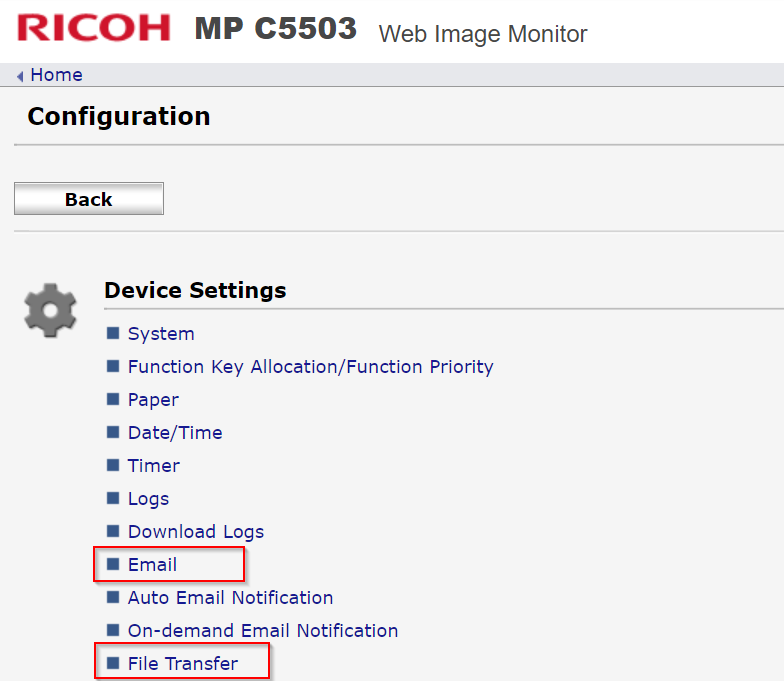
As shown below:
- Email: The email should be set as scanrouter@ffl.net
- File Transfer: SMB creds should be set for scanrouter@ffl.net (pwd in KeePass)
- Program/Change Administrator (not pictured): Set our default admin password ("ib4" password stored in KeePass)
See other KB article on installing a new printer on the print server for details on deploying it via Group Policy so the printer is automatically installed for the branch/department. In the meantime, you can email the affected users the path to click on to get the printer installed manually. Remind them to update their Cleartouch printer settings as well to adjust their default "Laser" printer.
Was this article helpful?
That’s Great!
Thank you for your feedback
Sorry! We couldn't be helpful
Thank you for your feedback
Feedback sent
We appreciate your effort and will try to fix the article