WCLEPrtSvr01 (CLE Data Center) - a second one will eventually be set up in Columbus too.
If installing a new model of printer:
Download printer drivers (exact model), upload to C:\Print Drivers and create model folder in the right directory. Universal Print driver usually OK, but not always.
OEMSetup (setup information file) is what we need
Print Management --> Print Servers --> WLKWPrtSvr01 (local) --> Drivers
Have Disk --> browse to directory and select the OEMSetup file.
Adds the printer and driver to the print server database (sometimes take a minute).
Adding the Printer (once driver is uploaded or if already present)
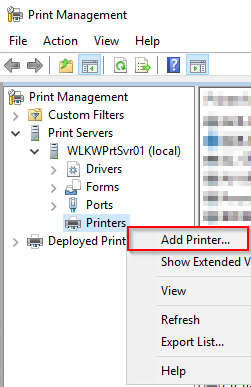
In Print Management, add printer by IP address. Select TCP/IP as the type, instead of Autodetect. This will hard code the printer to communicate via IP address instead of the WSD port.
Naming scheme: [Location]-[Dept] (if applicable)-[Model]. E.g. BRNLPO-Ricoh 4000
For MICR printers: MICR-[Branch], e.g. MICR-BRN
For replacement MICR printers, no changes required on the print server. Simply update the MAC of the new printer in the IP reservation in DHCP.
For replacement regular printers supplied by DEX Imaging, the machine will have a static IP address, usually the same address as the printer being replaced (no changes in DHCP needed). The new printer will need to be added as shown above, then deployed via Group Policy as shown below.
Make sure in Print Management that the printer is listed with a Type 4 driver. This will allow end users to install the printer on their own with local admin rights (no prompt to enter admin credentials). If it is showing as a Type 3, un-share the printer in Printer Properties, change the driver (if a Ricoh printer, make sure it's the same Ricoh universal driver as the other newer Ricoh printers), and then re-share the printer.
Deployment of Printer
Deploy the printer to the computers, not to the user, so it gets installed for the whole branch/location.
Group Policy Management (on your own computer) --> ffl.net --> OU --> highlight Computers OU --> right click to Create a GPO, if needed (it may already exist).
Name: e.g. FFL-BRNBranch-2022Serv
Then, back on the print server, find and select printer, right-click --> Deploy with Group Policy
Browse… All tab (if you get an error) then go back to Domains/OUs. Find OU, click OK. Add, Apply, OK.
User can do a gpupdate OR log off and on.
NOTE: For branches, there are existing sites set up where the printers are deployed.
Recommended: Deploying to the Computers OU applies the policy to the computers in that OU, regardless of their physical location.
Deploying to the Site applies the policy to the IP address range for that Site.
Fiserv/EOM Printing
Some printers are dedicated for EOM (Enterprise Output Manager) printing (i.e. Fiserv sends automatic print jobs for customer statements and other documents). When setting up a new or replacement printer dedicated for EOM, please contact Core Banking so they can update the printer link in the EOM system.
Restricting Printing to the Executive Team
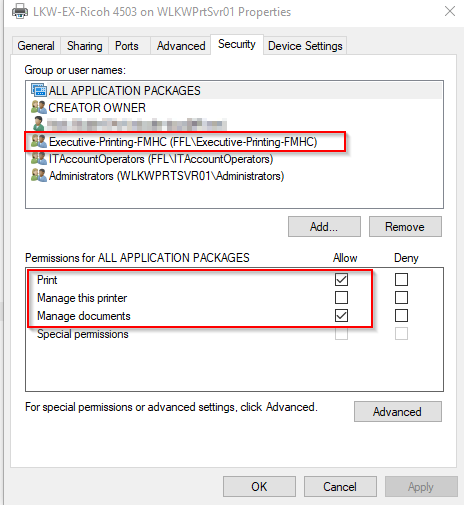
In AD, there is a security group named Executive-Printing-FMHC. This group contains all members of the FMHC Executive team. The two printers in the Executive area are restricted to only these employees. When setting up a new printer in that area, go to the printer's Properties on the print server --> Security tab, and ensure that "Everyone" is removed from the list and this Executive group gets added, as shown below:
Was this article helpful?
That’s Great!
Thank you for your feedback
Sorry! We couldn't be helpful
Thank you for your feedback
Feedback sent
We appreciate your effort and will try to fix the article