Updating the bank logo on the TPG receipt printers may be done remotely by following these steps. You do not need to be physically present at a branch and no software needs to be installed on the TPG's workstation.
This process may be followed after converting the new company logo from a BMP file to an LGO file, then developing the AXI file using the new LGO file (follow the instructions in the ReceiptWare User Guide stored in G:\Shared\AppFiles\TPG Receipt Printer\Logo & ReceiptWare).
These instructions are specific to the new 2020 FFL logo. Select the appropriate directory and files in Steps #5 & 6 if you are working on another affiliate's logo.
1. Remote into the computer of the TPG that needs its logo changed.
2. Run the CognitiveTPG ReceiptWare app from a machine where it is already installed (e.g. *UNC to \\wclejump01\c$\Program Files (x86)\CognitiveTPG ReceiptWare and run ReceiptWare.exe), OR install ReceiptWare on your own computer from here: G:\Shared\AppFiles\TPG Receipt Printer\Logo & ReceiptWare
3. Go to Tools --> Download Utility
4. In the right-hand section, click the dropdown and change it to the G:\ drive. (If the G:/ drive is not listed, you will need to copy the folder listed in Step #5 to the local machine, to anywhere on the C:/ drive.)
5. In the list below the dropdown, navigate to the following directory: G:\Shared\AppFiles\TPG Receipt Printer Logo (FFL)
6. Select FFL2020.axi and click "Send." Wait for the status window to go through several steps before finishing, when it hits "End of file!" This may take a minute or two.
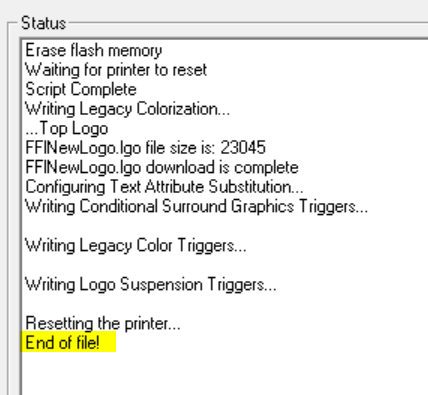
If you receive an error about "unable to open the file," you may need to edit the .AXI file and change the [LOGO] field to point to the location of the .LGO file in the directory to where you copied it on the local C:/ drive.
7. Then, in the same directory that you navigated to in Step #5, select Plain Receipt.txt and click "Send" to print a sample receipt with the new logo. Have branch staff verify that the new logo printed successfully.
Troubleshooting:
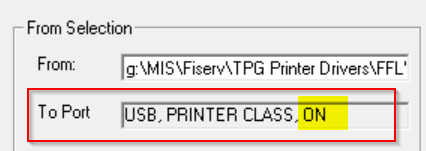
If you run into any issues with the last two steps, verify that the TPG is turned on and connected properly by looking at the "To Port" field.
*If you are not able to UNC to FMHC-IT-NBW10 in Step #2 and are receiving the error message below...
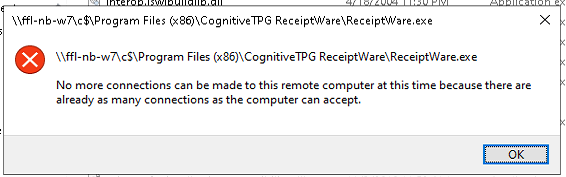
...then you will need to access Computer Management on that machine, go to Shared Folders --> Sessions and close any unused open sessions.
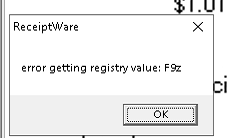
If you receive the error message below, make sure you are running ReceiptWare as an admin.
Was this article helpful?
That’s Great!
Thank you for your feedback
Sorry! We couldn't be helpful
Thank you for your feedback
Feedback sent
We appreciate your effort and will try to fix the article