*KB article to share with employees may be found here: https://support.firstmutualholding.com/en/support/solutions/articles/47001278028-papercut
Effective summer 2025, printers at FMHC Lakewood HQ and the Westlake Ops Center are configured with PaperCut for badge printing.
Employees now print to one centralized "Ricoh Secure Print" print queue, swipe their building access badge on the printer, and can release the print job.
The first time they use PaperCut, after swiping their badge, the system will ask them to self-enroll and authenticate using their Windows login credentials. For every print job thereafter, they simply need to swipe their badge* to proceed with printing.
If the employee gets a new/replacement badge from Security, they will need to re-enroll/re-authenticate once and the system will override the old badge info on their account. That temporary badge will be tied to their account, so we need to make sure to remove once we get the temp badge back.
IT Administrators can log in here with their main Windows credentials: http://wclepcut01:9191/admin
Employees can log in here with their main Windows credentials: http://PaperCut:9191/user
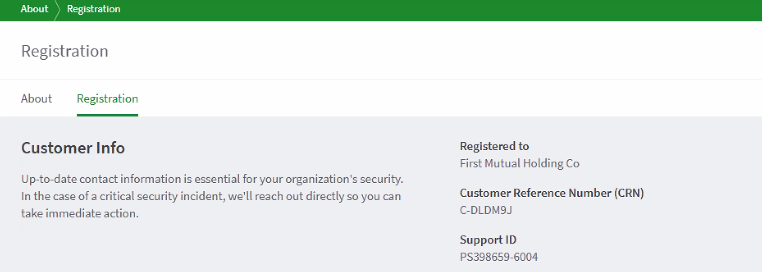
Customer Reference Number needed when contacting PaperCut support: C-DLDM9J
Print Delegation
Occasionally, an employee may wish to allow others on their team to print documents on their behalf when they are working remotely. To set up, follow these steps:
- Log into PaperCut as admin
- Under Users, search for and click on the employee who should be granted rights to print documents for someone else (i.e. the employee on site who will be physically releasing the jobs from the remote employee's queue)
- Scroll down, under Advanced Options, check the second box for Delegated Print Release
- Enter the username(s) or group name(s) of the employee(s) for whom you want to allow this user to print documents from their print queue (i.e. enter names of the employees who will be initiating the print jobs remotely)
- Click OK to save changes
*Issue identified June 2025 during implementation: The two older Ricohs in the 24461 Detroit building are not reading employees' badge #s properly. It is basically stripping out the 3s from their ID. Papercut will still work for them, but if any of them go to another newer Papercut-enabled printer in the 24481 building or at Lakewood HQ, they will need to re-enroll their ID as those devices will pick up the full ID #.
In July 2025, we identified this setting on the Device (under Advanced Config) as the culprit:

With this set to GLOBAL, it reads all the numbers.

With this set to ascii-enc, it reads the number without the 3's

You can see that with ascii-enc it's stripping the 3s from the number.
Other Troubleshooting:
- If print jobs get "stuck" in the Ricoh Secure Print queue and do not appear on the printers to be released (i.e. employee swipes their badge to log in but sees zero print jobs to release, even though they were sent to the queue successfully), Papercut support suggests restarting the Papercut Print Provider and Papercut Application Server services on the WCLEPcut01 server. If that does not help, a full server reboot has fixed this issue.
- Additionally, make sure the Papercut Print Provider service is running on wcleprtsvr01
Was this article helpful?
That’s Great!
Thank you for your feedback
Sorry! We couldn't be helpful
Thank you for your feedback
Feedback sent
We appreciate your effort and will try to fix the article