Setting up a new SP page, document library, and permissions: SP Document Library & Page Creation.mp4
- Be sure to set up a corresponding Members group in Active Directory so that admins of the new page can be added there.
Statistics
You can view recent statistics, like the top 10 most searched keywords over the past month, here: https://admin.cloud.microsoft/?#/MicrosoftSearch/insights
Archiving and Deleting of Pages
Only sites can be "archived." A page, when no longer needed, can be deleted and put into a recycle bin for 90 days. The request should be initiated by the LOB via a Service Desk ticket. The team will loop in Megan Baucco to review the page for any information that should be retained elsewhere on the intranet site before we proceed with deletion of the page and any associated document library, security groups for permission in AD, etc.
Data Retention
Regarding categorizing data with retention labels in Sharepoint, we can control the default retention policy in Microsoft Purview (https://purview.microsoft.com/recordsmanagement/fileplan?tid=d5030827-95ce-454e-b067-ebffc39ad0b2) --> Solutions --> Records Management --> File Plan
Document Tags / Taxonomy
To allow page admins to set "tags" on documents they upload, go into the Document Library Settings --> Enterprise Metadata and Keywords Settings --> Make sure the box is checked to enable the Enterprise Keywords field. This will permit page admins to pull any tag from within our Sharepoint taxonomy/term store.
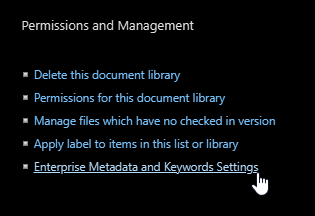
This box should be checked already for all existing document libraries. If the Enterprise Keyword column is missing in a specific document library, the page admin can go to Add Column --> Show/Hide Columns and check the box to show the Enterprise Keywords column.
Adding New Enterprise Keywords
If there is a significant business use case, and a new keyword is requested that applies to multiple documents (not just a one-off), we can add more tags / keywords to the library in Sharepoint Admin --> Content Services --> Term Store.
Image Tagging
If a page admin directly uploads an image to their page, they won't be able to edit the image tagging on the front end like they would be able to with an image web part. To do this, we can figure out where the image lives in the site assets and do it manually ourselves. To do so, inspect element on the image and see where it's pulling from: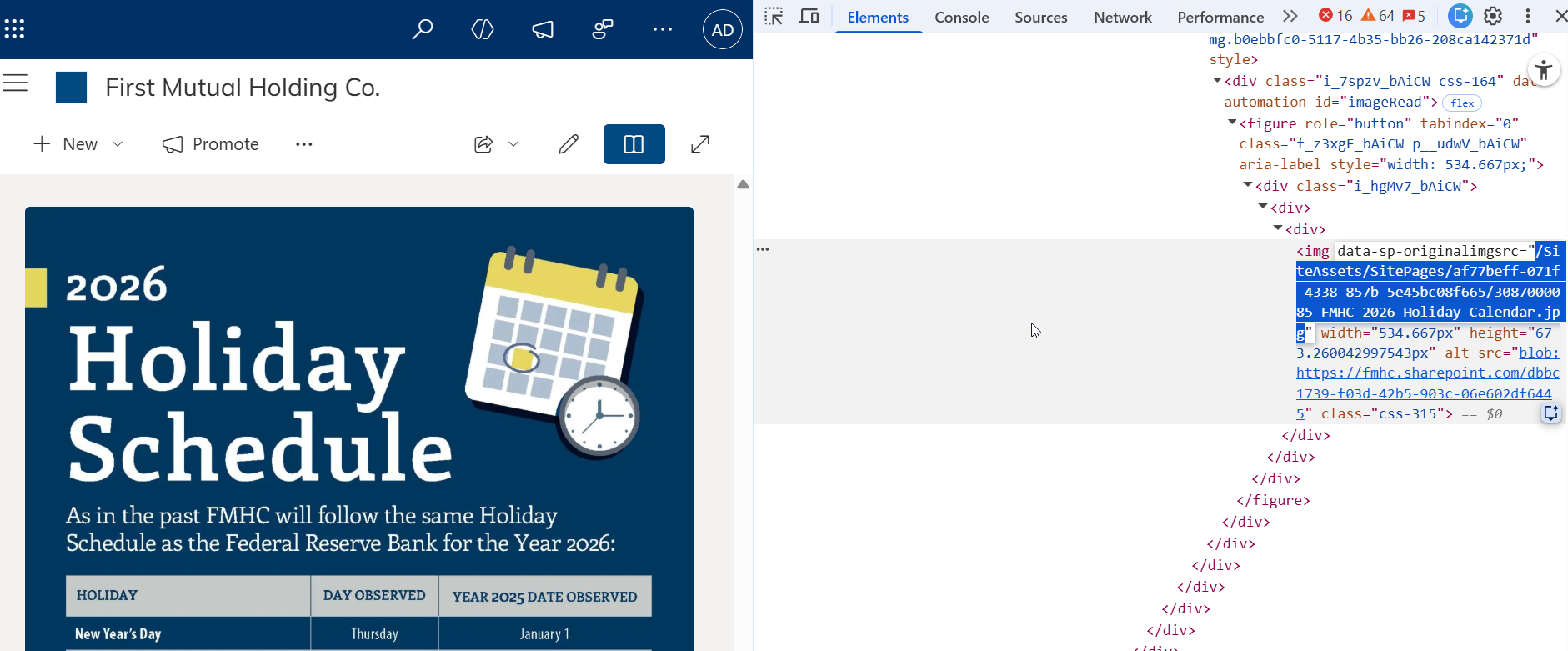
Navigating to the back end, you can then click the details tab of the jpg image and scroll down to image tagging: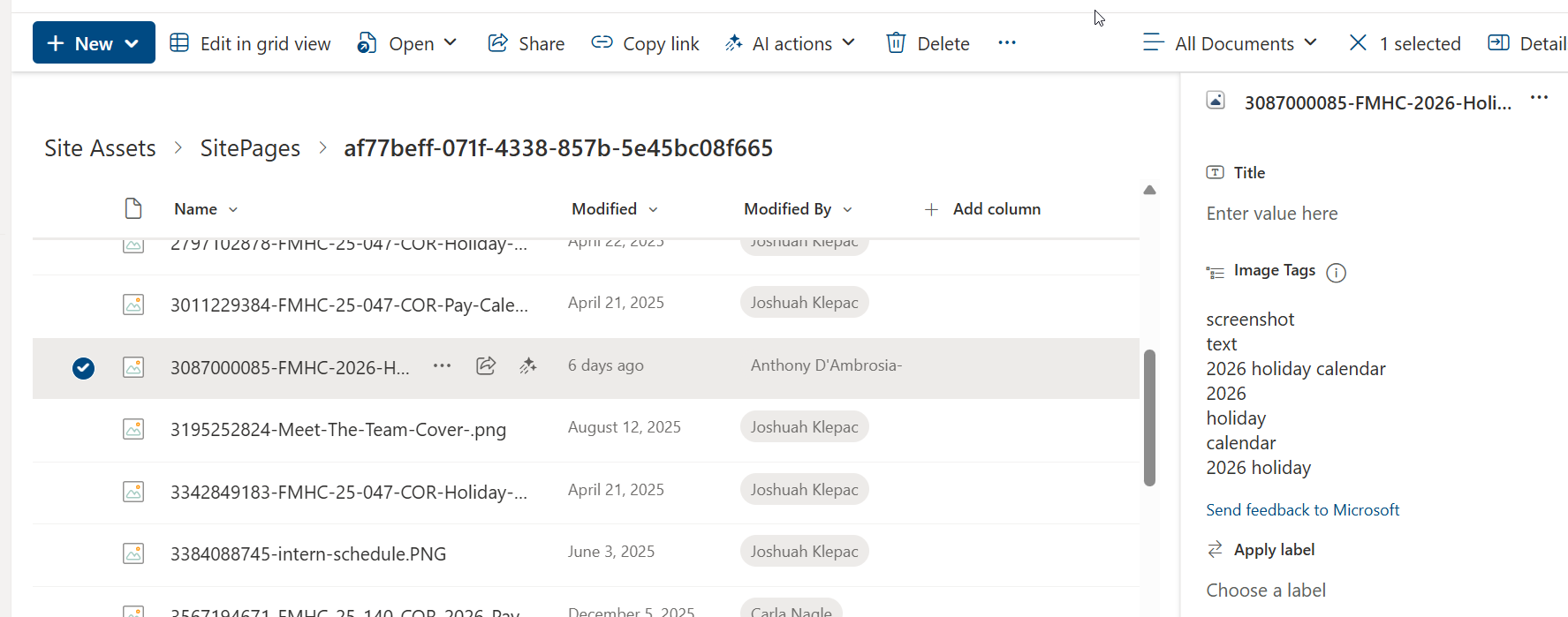
Here we can enter "tags" for image SEO. When people then search at the top search bar of the SharePoint site, they will be able to easier find what they are looking for.
Was this article helpful?
That’s Great!
Thank you for your feedback
Sorry! We couldn't be helpful
Thank you for your feedback
Feedback sent
We appreciate your effort and will try to fix the article