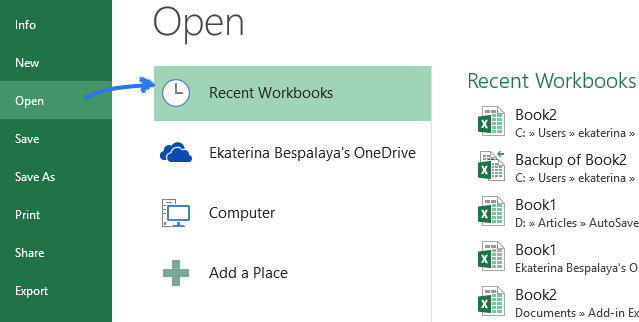
- Go to FILE -> Open.
- Choose Recent Workbooks.
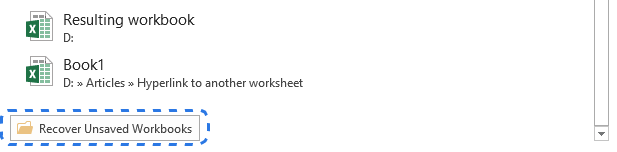
- Scroll down and click on the Recover Unsaved Workbooks button at the bottom of the list.
 Note. You can also go to FILE - > Info, open the Manage Workbooks drop-down and select Recover Unsaved Workbooks from the menu.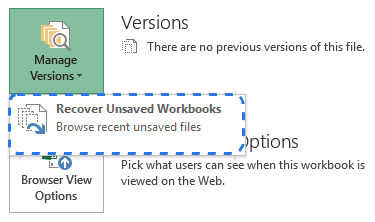
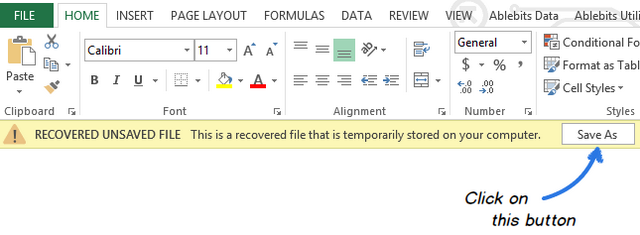
- When the Open dialog box pops up, just select the necessary file and click Open.The document will open in Excel and the program will prompt you to save it. Click on the Save As button in the yellow bar above your worksheet and save the file to the desired location.
Was this article helpful?
That’s Great!
Thank you for your feedback
Sorry! We couldn't be helpful
Thank you for your feedback
Feedback sent
We appreciate your effort and will try to fix the article