There are a variety of tools IT agents can utilize to provide assistance to a remote user and view their screen. Here is the list of current applications we use internally:
- ConfigMgr Remote Control (CMRC) Viewer - product of SCCM
- Remote user receives one prompt requesting access to view and control the screen
- Windows Remote Assistance
- Remote user receives separate prompts to view and to control the screen
- Windows Quick Assist: https://support.microsoft.com/en-us/windows/solve-pc-problems-over-a-remote-connection-b077e31a-16f4-2529-1a47-21f6a9040bf3
- This is the modern, more secure, and more robust version of Remote Assistance. Launch with Ctrl + Windows + Q
- Features:

- Windows Remote Desktop
- Remote user does not see you logged into your account. Allows you to use the computer as if you were sitting in front of it.
- Microsoft Teams
- Access for viewing the screen, but control of the screen may be limited (i.e. prompts for admin credentials may be inaccessible)
Microsoft came out with a new app that is similar to Quick Assist called "Remote Help" through MS Intune. However, this requires licensing that we do not have ($42/license/year, which would be $21,000/year for 500 employees). Third-party applications, like TeamViewer, may be less expensive (still about $2,500/year for TeamViewer) but can raise security concerns and a certain level of risk that is not applicable to the internal support tools we currently use.
Quick Tip on CmRc Viewer:
If you use Configuration Manager Remote Control, you have the option to see all of the user's screens or only the first screen. If they have three screens it can be difficult to work with as everything is too small. If you see just the first screen, the windows that you need may not open on the screen that you are viewing. Here is how to go with the first screen option and get the opened window(s) on to your viewable screen.
1. Launch the application that you need (like File Explorer)
2. If it does not show up on your active screen, it will still show up in the taskbar
3. Hover over the application in the taskbar until the preview appears
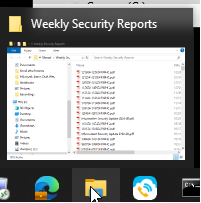
4. Right click on the preview and select Move
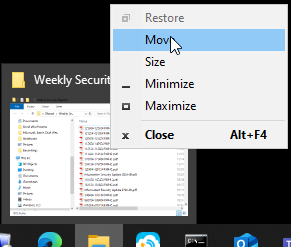
5. You won't see it, but your mouse cursor will automatically move to the title bar of that application. Hold down the left mouse button and drag it, typically to the left, to bring the window to your active screen.
Was this article helpful?
That’s Great!
Thank you for your feedback
Sorry! We couldn't be helpful
Thank you for your feedback
Feedback sent
We appreciate your effort and will try to fix the article