Occasionally, a user may report problems with call quality in Microsoft Teams. You can check details in the Teams Admin Center to determine where the issue originated.
From the Teams Admin Center (https://admin.teams.microsoft.com/), go to Users --> Manage Users --> search for and select the affected user.
Click the Meetings & calls tab, then scroll down to the Past meetings section. (Note: If their call/meeting is live, it should appear in the Recent meetings section and you can view info in real time.)
Click on the specific meeting/call ID to see the details. You can sort the list by the start time, the activity (call vs. conference), and audio quality (good vs. poor).
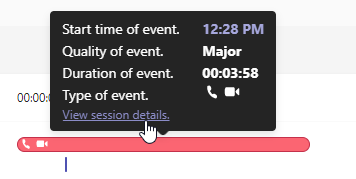
If one of the participants has a bar in red, you can hover over it and click View session details as shown below.
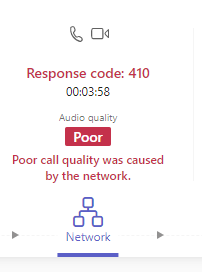
Here, you can check Connectivity to see if the user was on WiFi or Ethernet, and under the Network section, see the network stream details between the user and Teams. Note the round-trip time and packet loss rate as indicators of audio quality issues caused by the network connection.
Was this article helpful?
That’s Great!
Thank you for your feedback
Sorry! We couldn't be helpful
Thank you for your feedback
Feedback sent
We appreciate your effort and will try to fix the article