When a Transend user is working hybrid or fully remote, they will need the Transend IP for their station updated.
Locating the Station ID
You will need to locate the user's Cleartouch License number, this can be found in:
Microsoft Teams>Teams> Fiserv Support>General > Files > Master Network Lists
From here locate the bank the user is apart of (typically it is 110D for FFL)
Open the appropriate Master Network List
From here use CTRL + F and enter the user's name
From here find the Station Number under the Name Column, format should follow STXXXXXXXX
XXX-Bank Number
XXX-Branch Number
XX-Work Machine
This number will be used to locate the Station ID
Locating User’s Current IP
Navigate to https://central.sophos.com/manage/overview/dashboard
Search the User in the People Section, or their Device Name in Devices.
Find their current IP Address
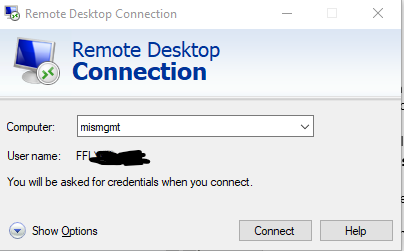
Once you have their current IP Address and their Station Number, RDP into the terminal server (WCLETS01)
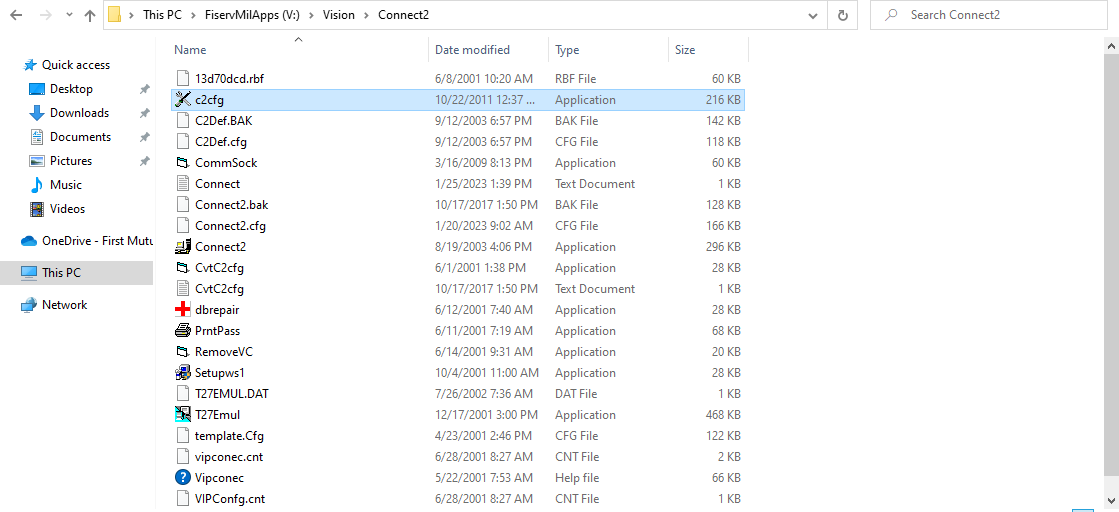
Open File Explorer
Go to FiservMilApps (V:), then navigate to Vision/Connect2, and open c2cfg
Navigate to Station IDs, and scroll down until you find the User’s Station ID
*Some users may have two entries for their Station ID, one will have a 172.16.240.XXX address, this is the one you are updating if they are remote
Change the IP Address to reflect the user’s current VPN IP address
Once completed, save and CLOSE* the Connect2 database, you can confirm with the user that they are able to access Transend, ensure that the user does not restart during this process as if they are remote they will pick up a different IP address upon restart.
*If you keep the database open, nobody will be able to use Transend. It must be closed for employees to use it.
Was this article helpful?
That’s Great!
Thank you for your feedback
Sorry! We couldn't be helpful
Thank you for your feedback
Feedback sent
We appreciate your effort and will try to fix the article