As of October 2022, OWA access is no longer permitted when off the FMHC network. You can access OWA internally (in the office or connected to the VPN) from the link on the intranet.
There may be an instance where a user needs temporary access to their email when they are remote and disconnected from the VPN. This may occur when VPN troubleshooting needs to take place, i.e. their Sophos connection profile is not saved to their local machine and they do not have a method by which to download or retrieve it aside from getting it sent to them via email.
To grant temporary OWA access, the "OWA Users" group in AD is no longer functional. Follow the steps below:
- Open Azure Active Directory
- Navigate to Groups and search for "OWA Policy Exclusion users"
- Click on the group, then select Members
- Click "Add members" to add the user who needs temporary OWA access
- Save your changes and give the system a few minutes to apply/sync the change
- User should have OWA access temporarily, until you remove them from this Exclude list when they are done
OLD instructions (or to see where the "OWA Policy Exclusion users" group is added)
Follow the steps below:
- Open Microsoft Endpoint Manager
- Go to Endpoint Security --> Conditional Access --> Restrict access to Exchange Online
- Specific users included & excluded
- Under the Exclude section, click the blue link that shows the current number of excluded users and add the desired user
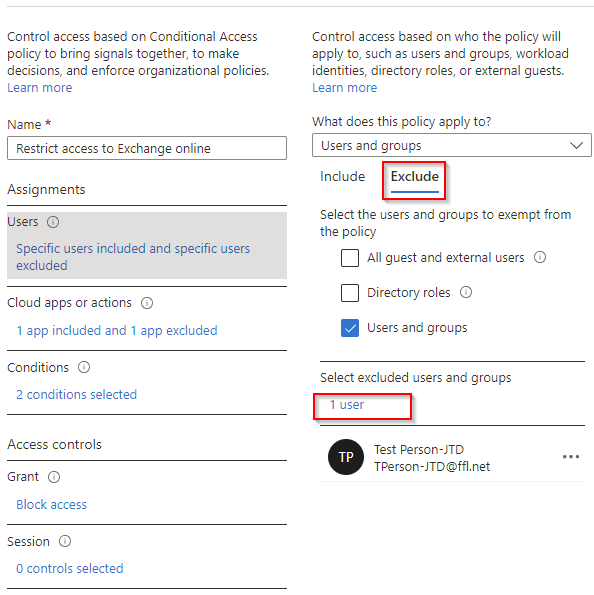
- Save your changes and give the system a few minutes to apply/sync the change
- User should have OWA access temporarily, until you remove them from this Exclude list when they are done
Was this article helpful?
That’s Great!
Thank you for your feedback
Sorry! We couldn't be helpful
Thank you for your feedback
Feedback sent
We appreciate your effort and will try to fix the article