The most recent fix is to go to regedit and edit :

if this doesn't work proceed with original fix:
Occasionally, a user launching Fiserv Prologue may receive an error message as pictured below:
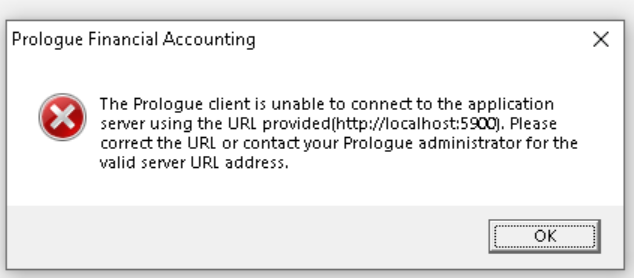
A second error may appear after this one.
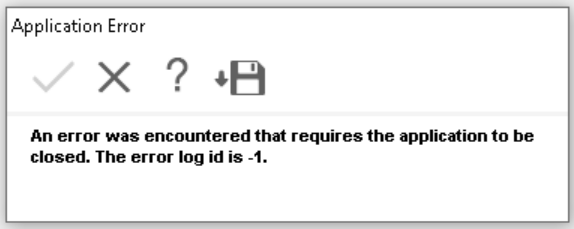
This may occur after a new install of Prologue on a computer, or after an update of Prologue (sometimes triggered by Windows updates), if an admin has not registered the program first (i.e. launches prologue.exe as admin) before the end user attempts to launch it.
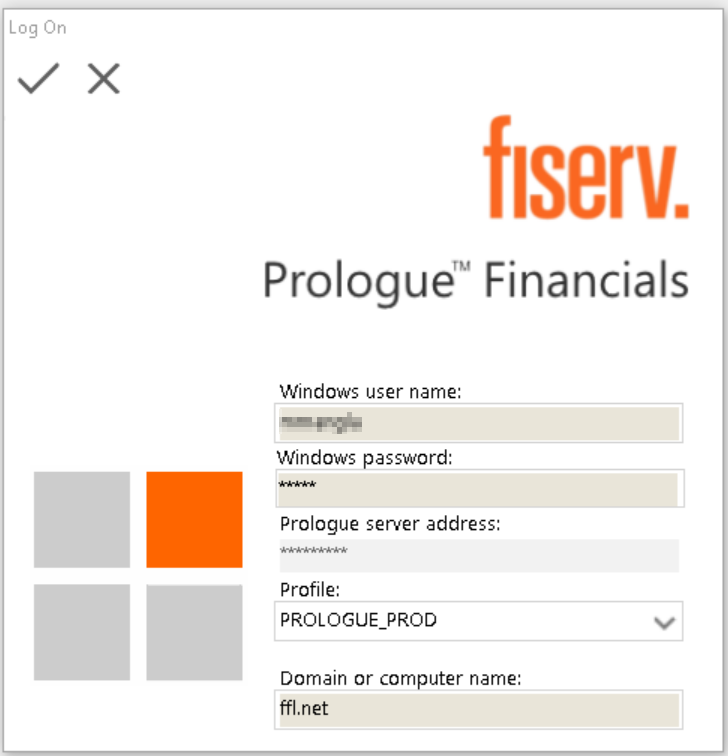
To fix, after the first error message appears, click OK, then you should be presented with a mostly-blank login screen.
Have the end user enter their Windows credentials in the top fields, then replace "localhost" with "prologue.ffl.net" in the Prologue server address field. Next, tap Enter on your keyboard to initiate a login. You may receive another error message, but after that, you should see PROLOGUE_2022 filled in automatically in the Profile field, then the user will be able to log in successfully.
PLEASE MAKE SURE PROLOGUE IS SET UP TO RUN IN WINDOWS 7 COMPATIBILITY MODE (Properties --> Compatibility --> Windows 7)
Further troubleshooting tips from Fiserv on this issue:
Click ok on the error, check the URL on the login screen, confirm it says: "http" (without the s), if it does please correct the URL, adding the 's', in these registries: 1.- Go to the registry values below and make sure the URL is in this registry path HKEY_LOCAL_MACHINE\SOFTWARE\WOW6432Node\Fiserv\Prologue Financial Accounting\XX.X0\URL
Depending on your setup you might not see this registry (it's ok if you don't): HKEY_CURRENT_USER\Software\Classes\VirtualStore\MACHINE\SOFTWARE\WOW6432Node\Fiserv\Prologue Financial Accounting\XX.X0\URL If you are unsure of the correct URL you can go to the same place in the registry of a working pc and copy it.
If this is a new setup (has never worked previously), please check this registry: HKEY_LOCAL_MACHINE\SOFTWARE\WOW6432Node\Microsoft\.NETFramework\v4.0.30319 check if you have in there the SchUseStrongCrypto REG_DWORD, it's value should be set to 1. If it's not there create it.
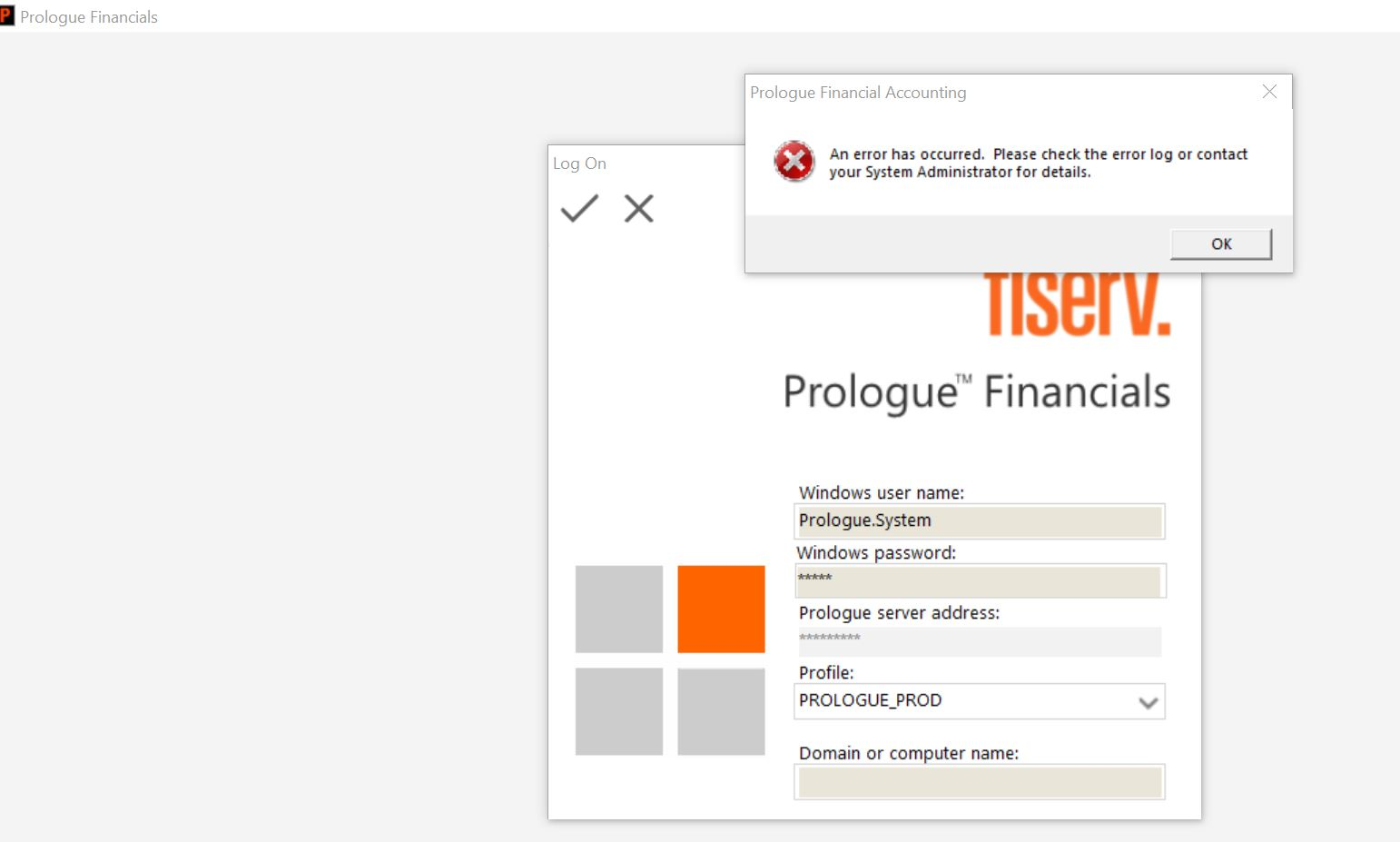
If the user receives the error below / has "Prologue.System" appearing as their username, have a Prologue admin check their Prologue account to ensure it's not disabled and that they have the appropriate permissions.
Was this article helpful?
That’s Great!
Thank you for your feedback
Sorry! We couldn't be helpful
Thank you for your feedback
Feedback sent
We appreciate your effort and will try to fix the article