Occasionally, a non-IT employee may need access to Lansweeper. Other Service Desk groups, like Mortgage Support and System Administration, for example, may find it useful when assisting other employees.
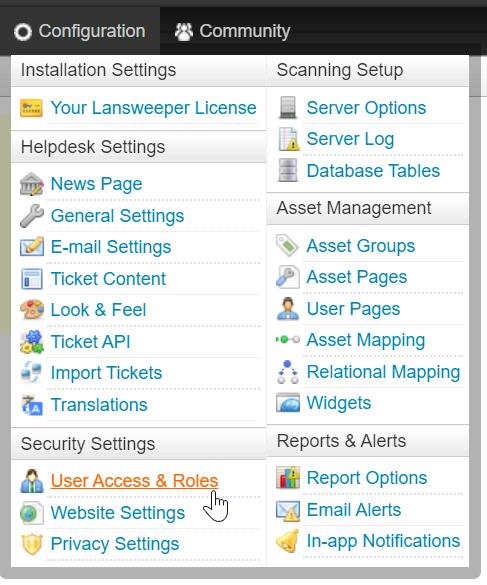
In Lansweeper, go to the Configuration tab --> User Access & Roles under Security Settings.
Then, under User Roles, click the globe icon on the ReadOnly row:
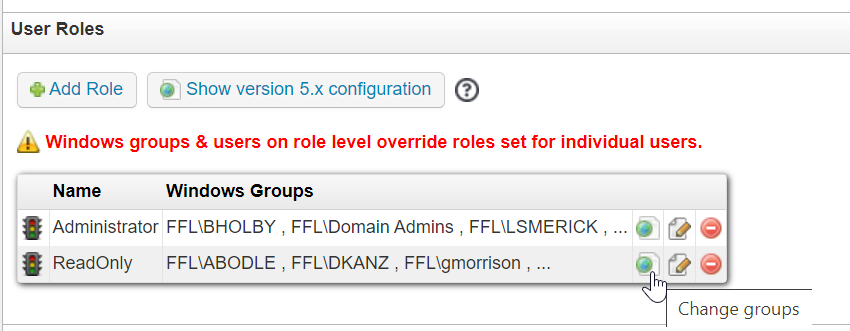
Enter the user's username as FFL\username, then click Add and OK.

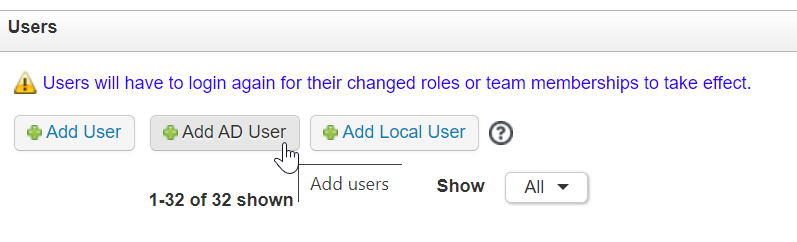
Then, under Users, click Add AD User, search the user's name, select it and click OK.
You have now granted Read Only access to the user within Lansweeper. However, the user will still not be able to reach the Lansweeper webpage when you provide them the link. To give them access to open the webpage via http://lansweeper:81/Default.aspx, go back to Configuration --> Website Settings:
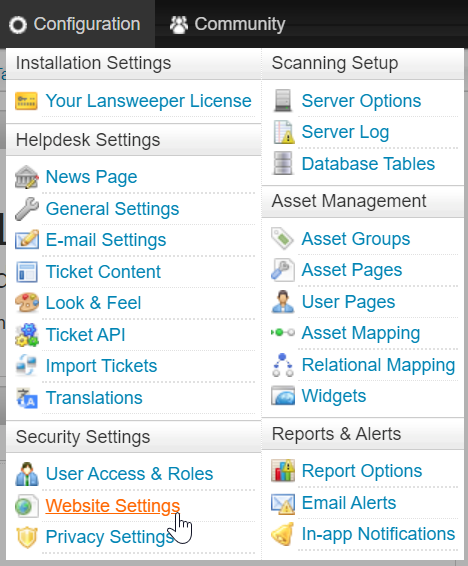
Click the Edit button, add the user as in the first step, then say OK.
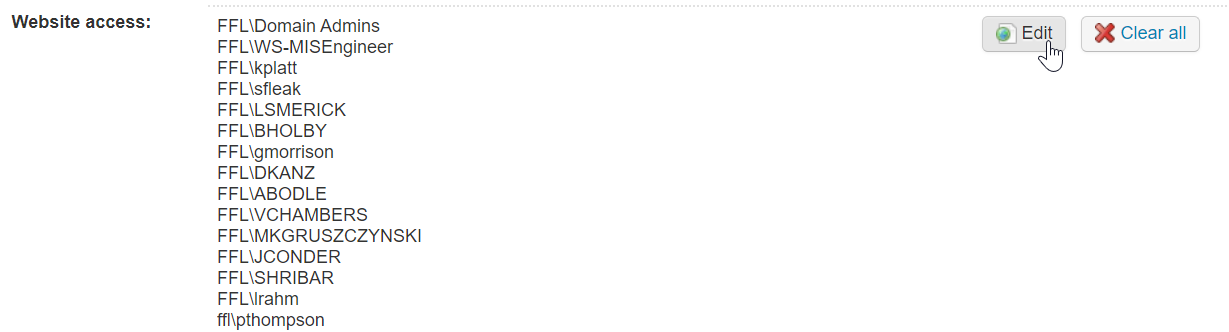
The user should now be able to reach the Lansweeper webpage and perform user & computer searches.
Was this article helpful?
That’s Great!
Thank you for your feedback
Sorry! We couldn't be helpful
Thank you for your feedback
Feedback sent
We appreciate your effort and will try to fix the article