The IT Service Desk staff will have basic/read-only access to the new Sophos firewall.
- Once a static IP address is set on the Sophos firewall for a Cleartouch user, it should never change (unlike what happens in PaloAlto where we have to update it regularly).
- The firewall syncs with AD, so a user should not actually get locked out on the firewall. We will only need to check AD and Duo for lockouts going forward.'
- All web access/policies are controlled through membership in AD security groups. e.g. IT users are in the "MIS Dept" security group in AD, which syncs into Sophos Central. Additionally, once the group is synced into Sophos from AD, the group object within Sophos Central can have additional members added to it by Sophos admins to create exceptions. For instance, although the CIO is in the "Executive" group, their user can be added to "MIS Dept" within Sophos to pick up the IT-specific firewall rules.
- *Users are able to go to the Sophos Connect app on their computer --> Events tab to view their own logs and see recent attempts and any errors. The logs in Sophos Central --> Logs & Reports won’t show us much more valuable info beyond what the user can see there.
- We are not restricting devices like cash advance terminals and printers/scanners (including the Ricoh 301s) on the new firewall. So, when we get new devices, we will not need to go update any IPs on the firewall – the traffic will just flow through properly. This is a stateful firewall, meaning anything that originates from within our network will be open and not blocked.
- Previously (when we switched to Sophos), when a user needed to connect to the VPN from outside the country, they would be able to do so without any action on our part, as we were not blocking any country that was not on the OFAC list. Currently, all international traffic is blocked, so please consult the IT Security Engineer to request a temporary rule to allow traffic for the duration of the employee's trip. Per HR, employees may only work outside the country for 20 days.
- Sophos admins (the engineers) will handle ending an active VPN connection (for advanced troubleshooting or for when HR terminates an employee) and unblocking a website when the need arises.
Sophos VPN Authentication Process Flow
- Sophos Client
- Firewall – checks username and password
- DUO System – sends prompt
- DUO Client on phone – user acknowledges prompt
- DUO System – receives acknowledgement and sends back to firewall
- Firewall – allows access
Sophos VPN Troubleshooting Tips
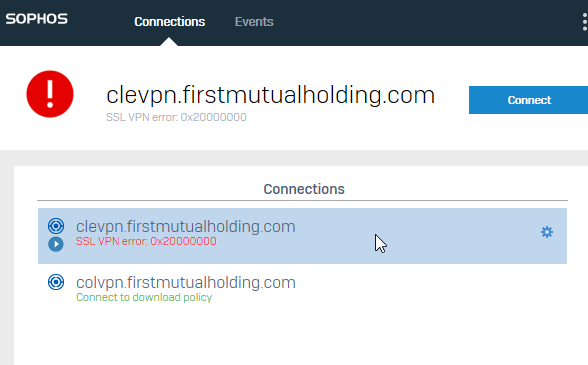
-As always, users can try restarting their computer and home router as a first step. They should verify internet connectivity by going to a website in a web browser (using Outlook/Teams is no longer an option, effective October 2022). A reboot usually solves this error message (SSL VPN error), or just waiting a minute or two before attempting to reconnect:
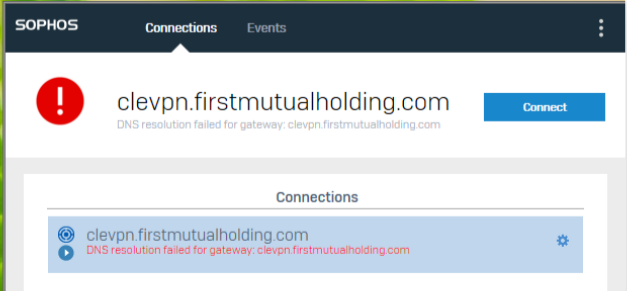
- If a user receives an error stating "DNS resolution failed for gateway..." see the note above. This could indicate an issue with internet connectivity, but sometimes has been resolved by restarting the computer.
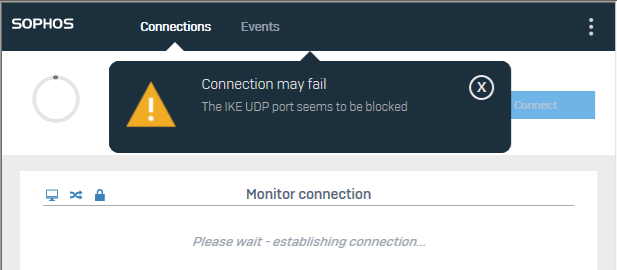
- If they receive an error that states "UDP/UDK/IKE blocked/failed" in Sophos Connect, they are more than likely locked out in AD. "Connection may fail / The IKE UDP port seems to be blocked" = restart or reinstall the client
- Error: "User Authentication Failed"

User should re-enter their login credentials. Sophos Connect will only accept [username], NOT an email address like [username]@ffl.net or [username]@firstmutualholding.com (unless it is an exact match for the user's UPN). IT recommends the employee always log in with just their username.
NOTE: As of September 2021, there is a glitch that can also cause this error if the user has spaces in their Windows password. This is a known Sophos issue that they are working to address. In the meantime, the user will need to change their Windows password to remove any spaces before they can log into Sophos Connect.
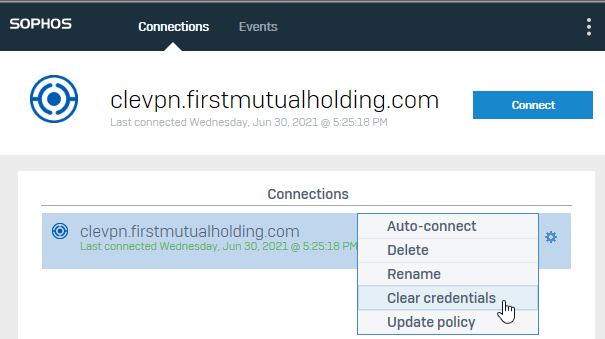
- In Sophos Connect, if the user has entered bad credentials AND clicked the "Save credentials" checkbox, they can (while disconnected from the VPN) click the gear icon in the row of the connection profile --> Clear credentials, then Connect and re-enter their username/password.
- *Until October 2022, even when a user was disconnected from the VPN, if they were connected to the internet, they were able to share their screen through Microsoft Teams, then we could request control to do a remote session. At that point, we could open Sophos Connect --> Events ourselves if needed. If they could not connect to Microsoft Teams, that may have indicated a problem with their internet connection, as Teams and Outlook used to work without the VPN. Effective October 2022, due to a change to secure Microsoft Intune, Teams and Outlook no longer work when off the VPN.
- If a user receives a "Cannot connect to server" error (note that this is rare), navigate on the user's machine to the C:\Program Files (x86)\Sophos\Connect\protected directory, delete the com.sophos.connect.[long number] file. Then, re-import the connection profile (.PRO file). (You can only delete the file with admin credentials.) If the user does not already have the connection profile saved to their computer/C:/ drive locally, until October 2022, you could email it to them and they should have been able to receive it, assuming they have internet access.
- If the user is receiving a Connection Failed message, ensure that they are connecting to the correct .PRO connection file (clevpn.firstmutualholding.com as of June 2021 - the old one starting with "FMHC" should not be used).
- If a user still cannot connect, a complete reinstallation of Sophos Connect may be necessary. After uninstalling the app, delete the C:\Program Files (x86)\Sophos\Connect directory to give it a clean slate. Reboot the computer, then proceed with reinstallation.
- Some security/certificate warnings can be cleared up by updating policy:
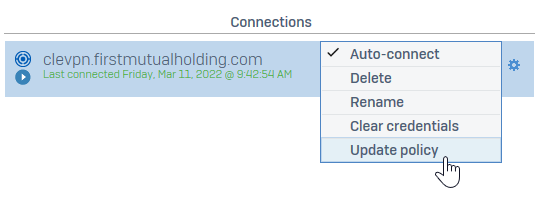
- If user sees "Service unavailable," open Command Prompt as admin and execute the following: net stop scvpn net start scvpn
- Escalate any major issues (not resolved using the above steps) to a Sophos admin for troubleshooting.
If user does not have Sophos Connect installed and is completely off the network, they can get logged into Sophos and download the installer via this link (as long as they are connected to the internet): https://12.54.40.194/userportal/webpages/myaccount/index.jsp
Was this article helpful?
That’s Great!
Thank you for your feedback
Sorry! We couldn't be helpful
Thank you for your feedback
Feedback sent
We appreciate your effort and will try to fix the article