Some users connecting via VPN are having issues with the Nautilus Unity Client installation. To do a manual install, please follow these steps:
- Remote connect to the user’s computer.
- Copy the entire Nautilus folder from G:\IT\Apps\Nautilus (Unity Client) to the user’s local computer at C:\Temp. If the Temp folder does not exist, please create it, and copy the Nautilus (Unity Client) folder into it.
- If present, uninstall the old Hyland Unity Client or Nautilus Unity Client from Control Panel.
- Run all of the following install files using YOUR normal user credentials, i.e. as a member of the ITAccountOperators Group.
- Go to Control Panel > Programs, and check to see if Microsoft Visual C++ 2019 Runtimes are installed on the user’s computer. If not installed, go to C:\Temp\Nautilus (Unity Client)\prereqs, and run VisualCppRedist_AIO_install.bat to install the necessary runtimes.
- Go to Control Panel > Programs, and check to see if Microsoft SQL Server 2012 Native Client is installed. If not installed, run sqlncli64.msi to install the SQL 2012 Native Client.
- Only after the pre-requisites in Steps 3 & 4 are installed successfully - Go to C:\Temp\Nautilus (Unity Client) and run the setup.exe in the New Unity Client 21.1 folder to install the Nautilus Unity Client.
- Once installed, copy over the naunity.exe.config file (to C:\Program Files (x86)\Fiserv\Nautilus\Unity Client) to configure the user connection.
- Verify the new desktop shortcut is in place and working properly.
- Have the user log into the Nautilus Unity Client and ensure they are able to log in successfully.
- Give yourself a pat on the back.
Alternative way to install Nautilus (Easy pro non-amateur version)
- Remote into the user's computer.
- UNC and copy the entire New Unity Client 21.1 from G:\IT\Apps\Nautilus (Unity Client) to the C drive / C:\TEMP
- Uninstall the current version of Nautilus on the PC.
- Run setup.exe using YOUR normal user credentials from New Unity Client 21.1 that you copied to the C drive
- Click next through all of the windows until you get to this screen
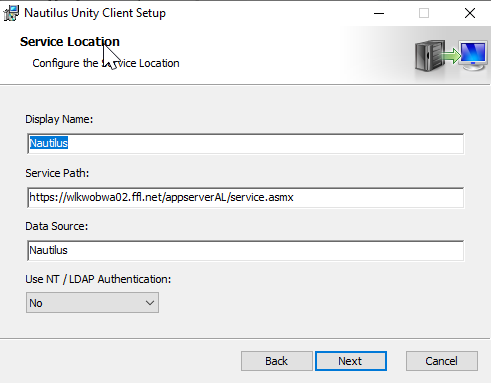
- In the "Service Path" field enter: https://wclenauwa01.ffl.net/appserveral/Service.asmx
- Select Yes in the dropdown menu under "Use NT", then Next
- Select next again, then uncheck the box to look like the screen below.
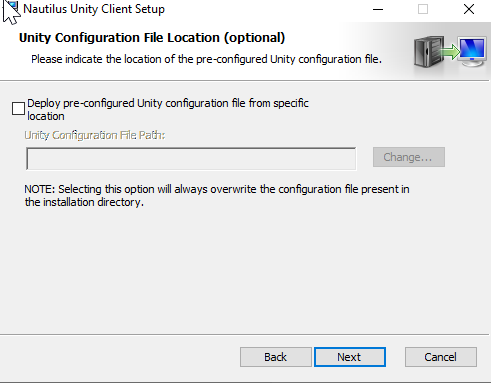
- Install with a desktop shortcut, and finish the setup.
- Have the user log into the Nautilus Unity Client and ensure they are able to log in successfully.
- Give yourself & Max a pat on the back.
Was this article helpful?
That’s Great!
Thank you for your feedback
Sorry! We couldn't be helpful
Thank you for your feedback
Feedback sent
We appreciate your effort and will try to fix the article