New Cleartouch Terminal or User

Modified on Wed, May 28, 2025 at 12:39 PM

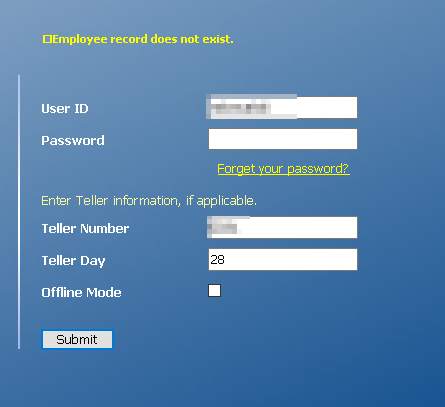
If you receive "Your workstation has not been setup with Passport. Contact your Cleartouch administrator." message when logging in to Cleartouch, the terminal needs to be added in Passport. If you receive "Employee record does not exist" or "Employee record not found" message, as shown below, the employee needs to be added in Passport. 
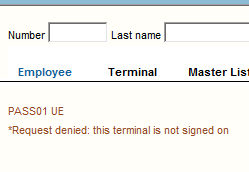
Make sure you are logged into Cleartouch with your teller number, otherwise you might encounter the following error message when attempting to use and create new records in Passport:  

  1. 1. Log into Cleartouch with Admin rights and your teller number

  2. 2. Select "Passport" from the Tasks list

  3. 3. Click on "Terminal" for a new CT license, or "Employee" for a new user

    You must enter the branch and teller number OR employee info in the appropriate boxes
  4. 4. Hover over "Terminal" or "Employee" and select "New"

  5. 5. Select "Duplicate from"

  6. 6. Enter the new info (branch and terminal number for a workstation) in the top section (under the first blue bar)

  7. 7. Enter an existing info (branch and terminal number, or employee number) in the bottom section (under Duplicate Authorities - second blue bar)

  8. 8. Enter 000 and 500 in the Security Group fields

  9. 9. Click Update

    *If it gives you an error about the "500" entry being invalid, return to Step 4, and instead of using "Duplicate from" an existing workstation, just "Add New" and it should proceed successfully.
  10. 10. Click Update through the subsequent pages, until you receive a message that the terminal/user has been added.

Was this article helpful?

That’s Great!

Thank you for your feedback

Sorry! We couldn't be helpful

Thank you for your feedback

Let us know how can we improve this article!

Select at least one of the reasons
CAPTCHA verification is required.

Feedback sent

We appreciate your effort and will try to fix the article