Adding a User to a Distribution Group

Modified on Wed, Nov 27, 2019 at 2:52 PM

To add an employee to an e-mail distribution group, follow these steps.
  1. 1. Add user to distribution group in AD

    In Active Directory, locate the user and open Properties. In the Member Of tab, "Add" the distribution group to which they should belong. Hit Apply to save the change.
  2. 2. Add "Send As" capability

    To give the user permissions to send e-mails as this distribution group, log in to the Exchange Admin Center. Under "groups," locate and open the distribution group. Under the "group delegation" tab, in the "Send as" section, click the '+' sign to add the user. Hit "save" to apply the change.
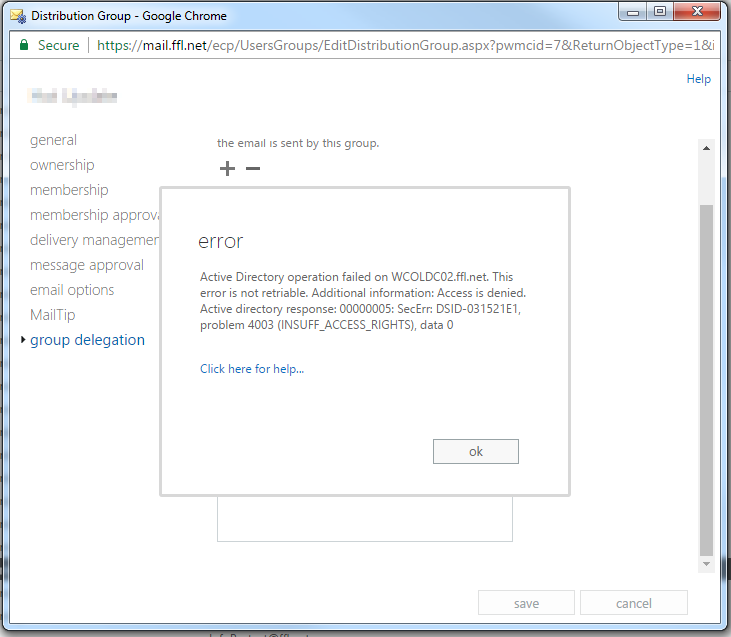
    If you receive an "Access denied - insufficient access rights" error (see screenshot), proceed to Steps 3 and 4.
  3. 3. Access Denied error (a)

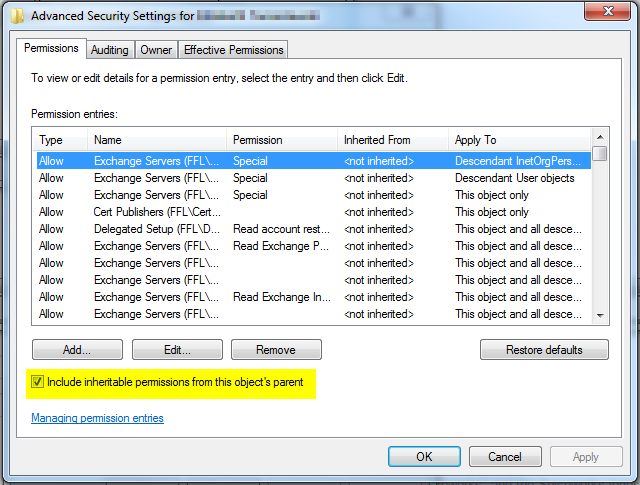
    To bypass this error and add the user to the Send As list, go into the properties of the user in Active Directory. In the Security* tab, click "Advanced" and check the box that says "Include inheritable permissions from this object's parent." Click Apply and OK.

    (*If you do not have a "Security" tab, go to the main Active Directory window, View menu --> Advanced Features.)
  4. 4. Access Denied error (b)

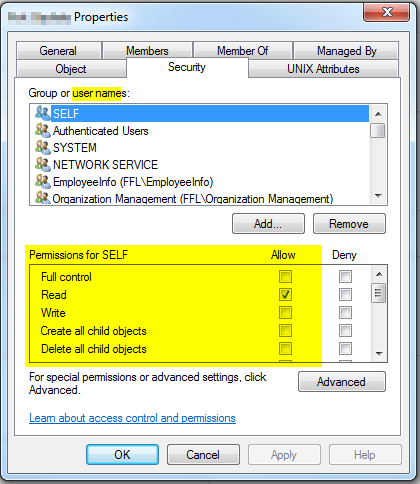
    In Active Directory, navigate to the properties of the distribution group. Click on the Security tab. Add the user to that list, and check the boxes to Allow: Read, Send As, Read Exchange Information, Read Exchange Personal Information, and Read phone and mail options (5 boxes checked). Click OK.
    Try adding the user to the Send As list again in Exchange Admin Center.

Was this article helpful?

That’s Great!

Thank you for your feedback

Sorry! We couldn't be helpful

Thank you for your feedback

Let us know how can we improve this article!

Select at least one of the reasons
CAPTCHA verification is required.

Feedback sent

We appreciate your effort and will try to fix the article