When a user needs to build their profile on a new machine, send them these instructions. Make sure to add them locally to the RDP group in Computer Management or they might not be able to sign in.
In order to sign into your new laptop. You'll have to follow these steps:
First, please open either of the below icons. They should be on your desktop. once opened it should take you to a webpage.
 OR
OR 
Once open, log in with ffl\(username) and your Windows/computer password. At the next page, select the specific application you wish to use. You should see this page or something like it.
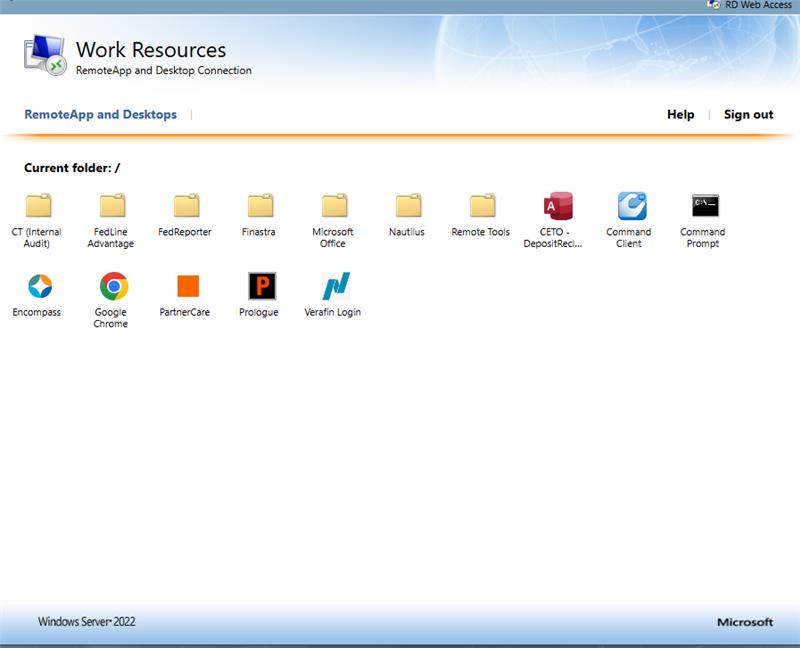
Click into the remote tools folder, then "remote desktop connection"
In your Downloads (usually in the top right corner of your browser: ), click open the application that just downloaded. You should see this:
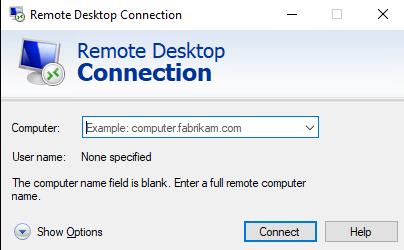
In the field, please put ABS-DB-105. Then log in once more with ffl\(username) and Windows/computer password. At this point, be prepared to accept a Duo prompt on your phone in order to proceed.
You should then be loading into the new PC. Once in, please open outlook, teams, and any web browsers you use. Let me know if you have any questions!
Was this article helpful?
That’s Great!
Thank you for your feedback
Sorry! We couldn't be helpful
Thank you for your feedback
Feedback sent
We appreciate your effort and will try to fix the article