Occasionally, HR will inform IT that an employee is on a leave of absence (FMLA due to health reasons, etc.). During this time, an employee should not be working or accessing work-related apps or systems.
As of December 2025, an email is sent from an HR team member to the Service Desk. An automation rule in Freshdesk assigns the ticket directly to the Workplace Technology Manager to limit exposure of this information in the general queue. The original email should also have the Chief Technology Officer and Infrastructure Engineering Manager copied in the event that the Workplace Technology Manager is OOO and unavailable to handle the request.
- Step 1: Disabling Access
- Resetting the user's Windows password is the most effective route to prevent access to our systems. The password can be reset by the employee upon their return to work. This will prevent having to retire the user's cell phone in Intune Admin or unenroll from any specific systems.
- One caveat: To prevent the employee from making calls through the Office@Hand mobile app, you can also reset their O@H password and PIN, then initiate a sign-out from all current sessions in the AT&T admin portal.
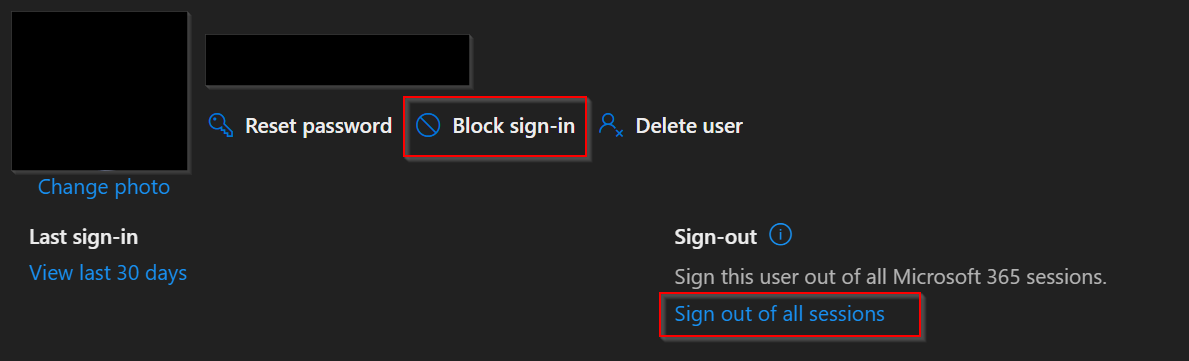
- End O365 sessions and block sign-in:
- Ending their current VPN connection in Sophos Central should be done by IT Engineering.
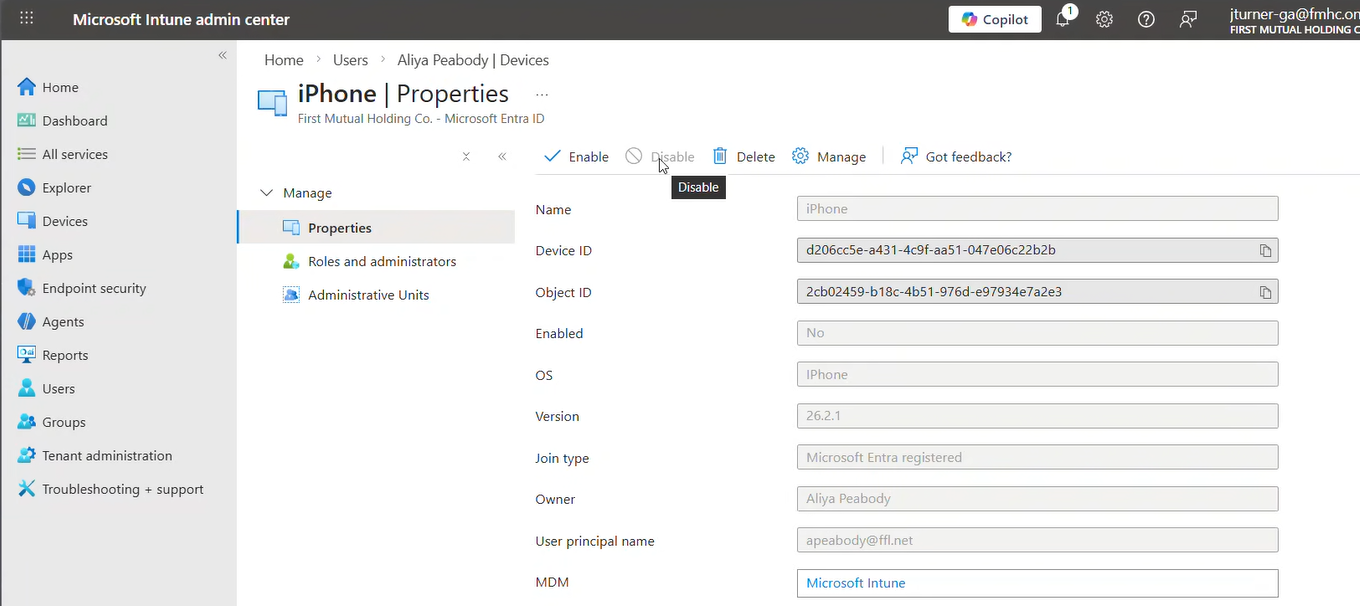
- Signing the user out of all Intune sessions should be done by IT Engineering. We need to prevent access to work emails during the leave period. Retiring the user's phone in Intune is frowned upon by HR as they would need access restored as soon as they return from leave (i.e. no downtime upon return). Jerry has found this method to "disable" the user's phone in Intune Admin that will temporarily restrict access without retiring the device:
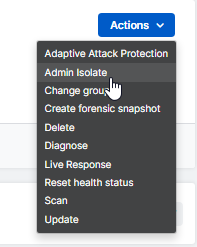
- Isolating the employee's computer in Sophos Central can be done by IT Engineering to prevent future VPN connection attempts and limit network connectivity.
- Resetting the user's Windows password is the most effective route to prevent access to our systems. The password can be reset by the employee upon their return to work. This will prevent having to retire the user's cell phone in Intune Admin or unenroll from any specific systems.
- Step 2: Reclaiming of Company Equipment (if applicable)*
- To keep all computers up-to-date with Windows patching and other updates, IT prefers that the laptop computer be returned to maintain on the network. However, per HR, we can't commit to a standard procedure for return of laptops, as most employees are virtual and we can't be consistent. Any updates will need to be handled once the employee returns to work.
- Step 3: Forwarding of Phone Calls, Emails, and Personal Files
- HR may direct that the employee's phone calls and emails be forwarded to their manager or another party during their absence. This can be handled in the AT&T admin portal and O365 admin portal.
- If necessary, U:/ drive files or OneDrive files can be shared with another party as well. (Details needed)
*HR's (Amy's) questions/concerns around reclaiming of the employee's computer as of Jan. 2026:
- What length of leave would require this?
- How would you get equipment? HR cannot manage equipment. What happens with remote people?
- How would they get it back? We don’t always get a lot of notice when they will return. We cannot have employees back to work with no way to work.
- Would they get the same one back? What if they have things saved on their desktop?
- We don’t always get a notice period for a leave, what do we do then? Once leave starts, they cannot do work and we shouldn’t be contacting them about work. We cannot interfere in any way with the leave.
- Today, someone can go on leave and never log on during the leave (which they shouldn’t be). Why does it matter now?
Was this article helpful?
That’s Great!
Thank you for your feedback
Sorry! We couldn't be helpful
Thank you for your feedback
Feedback sent
We appreciate your effort and will try to fix the article