Step-by-Step Setup:
- First Login:
- Log in to the computer, open Computer Setup Checklist from G drive. Fill out basic PC info.
- Ensure the computer is encrypted with BitLocker.
- Check BitLocker status via C drive or command prompt
- Run CMD as admin
- manage-bde -on C:
- manage-bde -status
- Run CMD as admin
- Check BitLocker status via C drive or command prompt
- Rename the PC to the desired name. Get from request spreadsheet, check both AD and Lansweeper to see if name already exists
- “View your PC name” from start. Rename and restart
- Sophos VPN
- Open “Sophos Endpoint Agent” from start, ensure device is protected
- Open “Sophos Connect” from start to verify app is installed
- Make sure most up-to-date sophosSSLVPNduo.pro file is located in the Sophos folder on the C drive
- OU in AD
- Find newly named PC in BitLockerTest OU in AD
- Right click and move PC to correct OU
- Open CMD prompt as admin in the PC you are setting up and run gpupdate /force
- Find newly named PC in BitLockerTest OU in AD
- Windows Update:
- Check Windows version, make sure it is 22H2 or greater. If the version is outdated (21H2), request to add the computer to the upgrade group from an engineer, or upgrade from web
- Dell Command Update - MAKE SURE LAPTOP IS PLUGGED INTO DOCK TO PULL DOCK DRIVERS
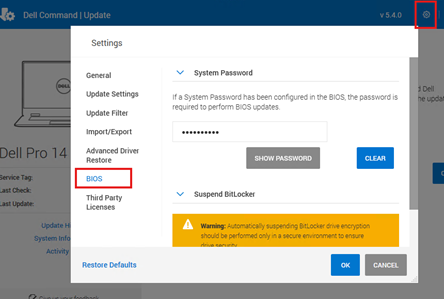
- Run “Dell Command | Update” from start menu as Admin.
- Once open, go to settings, and enter the master BIOS password. Procceed with OK and install required updates
- Open Computer Management -> Local Users and Groups -> Groups -> Administrators -> Add Account Operators based on bank.
- FFLaccountoperators for all non affiliate banks.
- FMBaccountoperators for FMB, WARaccountoperators for Warsaw, etc.
- Device Manager
- Open device manager and verify no errors.
- If there are errors, right click on the driver(s) needing updated and “update driver”
- Select “Browse my computer for drivers” and install necessary drivers based off device model from \\wlkwsccm02\drivers\
- Open device manager and verify no errors.
- Network Configuration:
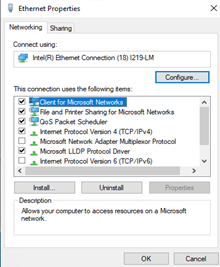
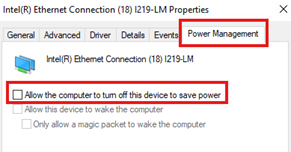
- Disable IPv6 and power management settings for ALL network adapters.
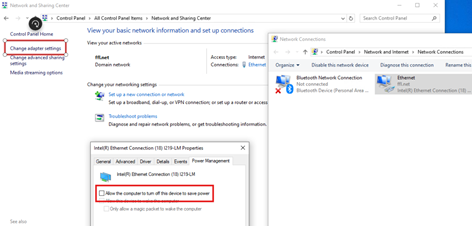
- Disable IPv6 and power management settings for ALL network adapters.
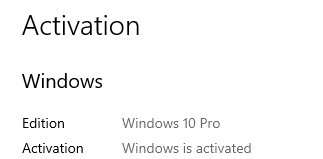
- Ensure windows is active
- Search “Activation settings” from start
- Software Center
- Install “Office 365 FMHC Current Channel” to install MS Office
- Install “FMHC Wireless Profile” for Wi-Fi in Lakewood and Westlake offices for laptops only
- Test Apps
- Launch Nautilus Unity Client, verify no errors
- Launch Encompass from the Applications folder on the desktop, enter client ID BE11354300 and ensure program starts (BE11354300)
- Final apps to install
- Verify all applications / software is installed that was requested on the Useradd sheet.
- Ex. Adobe, Prologue, CutePDF writer, Greenshot, Diligent, Oracle, etc.
- Verify all applications / software is installed that was requested on the Useradd sheet.
- User Setup
- Login as the users account to build profile.
- Uncheck the box in AD to have user "change password at next login."
- Once logged in, launch Outlook
- Unpin generic mail icon from task bar, unpin Microsoft store from task bar
- Open Sophos Connect and import connection from C drive.
- Test VPN with users credentials on external hotspot.
- Once done, check back the box in AD to change password at next login
- Restart Computer
- Login as the users account to build profile.
Done!
Was this article helpful?
That’s Great!
Thank you for your feedback
Sorry! We couldn't be helpful
Thank you for your feedback
Feedback sent
We appreciate your effort and will try to fix the article