Every day at 12:00 midnight, ADSelfService Plus will send MIS Alerts a report of users whose Windows passwords are set to expire in the next few days. Occasionally, the report stops working / comes across blank with no results:
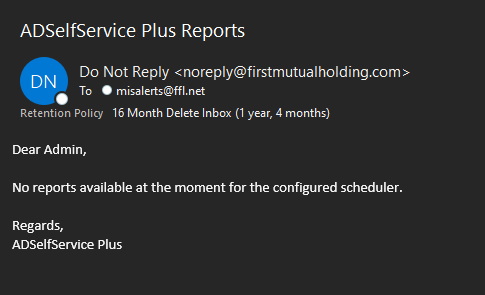
If this only appears like the above for one day, it is possible that there are no users with Windows passwords expiring in the next six days (rare, but not impossible). If this report continues to be sent as shown above for several days, then it becomes apparent that the report scheduler is definitely not working.
To fix, here are some things to check in ADSSP admin portal:
- This could be an issue with the domain account that queries AD from ADSSP. In the top right, go to Domain Settings --> pencil icon to "Edit Domain Details." The user ID is adssp, and even though the password field appears blank, this has already been put into the system. It would not hurt to re-enter the password there (consult KeePass) and click Save to see if this fixes the issue at the next report run (at midnight). Generally, if the adssp account is not working, then a user probably would not even be able to unlock their account on their own, so it should be much more obvious than this daily report not working. However, re-entering the password can't hurt and it sometimes yields positive results.
- Less frequent: Under Reports tab --> User Reports --> Soon-to-Expire Password Users Report, click Schedule Reports (top right) --> on the enabled scheduled report row, click the pencil icon to "Edit this Scheduler." Under step 1 / Select Domain, click OUs to view the OUs that apply to this report. When new OUs are created in AD, this does not automatically sync in ADSSP, so you need to manually go through the list and make sure that all "Users" groups under every OU are selected (and NOT any Terminated or Former Employees OUs). Many times, this is the culprit and the report should be fixed on the next run.
- If the issue persists, you can contact ManageEngine for support.
Another issue you might encounter is seeing zero enrolled and zero un-enrolled users on the main dashboard after you log in as admin. Typically, it should show real numbers, like this:
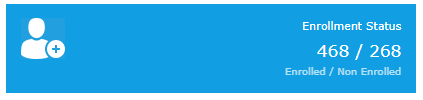
If it is instead showing 0 / 0, please try the following:
- Log in as admin
- In the top right, click Domain Settings
- Click the Actions column
- Click Update Domain Objects icon
- Select all boxes then click OK
- Check the dashboard again to verify that the correct figures are displayed
Was this article helpful?
That’s Great!
Thank you for your feedback
Sorry! We couldn't be helpful
Thank you for your feedback
Feedback sent
We appreciate your effort and will try to fix the article