Starting 12/1/21, Freshdesk is now configured to send/receive emails using our "internal" (Office 365) mail server instead of Freshworks' mail server. This has removed the "External Email" warning on Service Desk ticket emails.
Below are the steps followed to configure this in Freshdesk in case changes are needed in the future.
Current instructions* - How to set up Freshdesk to use O365 as mail server / reauthenticate the Service Desk account:
- Launch a private browsing window in your favorite web browser
- Navigate to Freshdesk and log in as ServiceDesk account (use AD credentials - stored in KeePass) - Service Desk is set up as an agent
- If SSO does not work, you will need to log in manually. Not currently synced with AD, so it may be an old password. If you cannot log in manually, you can reset the Service Desk FD password via email.
- Navigate to Settings --> Email --> edit --> Use your existing support email --> Sign into O365 as servicedesk@ffl.net
- Permission must be granted to Freshdesk to send/receive emails as ServiceDesk. Verify that Service Desk is still set up as an Application Administrator in Azure AD (see Calendly article for details).
- Verify reauthentication worked by testing mail flow in the ticket portal.
To re-authenticate the Shared Loan Service account OR Security Requests for SLS/Security emails/tickets:
- Follow the steps above, but make sure to log into Freshdesk as ServiceDesk MANUALLY (do NOT sign in with SSO, otherwise ADFS will kick in and prevent you from setting the SLS/Security email address - it will automatically pull in ServiceDesk for their email profile). Password is stored in KeePass.
*The Service Desk account is no longer Logon Limited, so you can access OWA for Service Desk within your own account by following the steps above. Previously, you had to follow the steps below.
OLD instructions - How to set up Freshdesk to use O365 as mail server:
- Need to log into a machine as ffl\servicedesk (login password is stored in the Description of the FMHC Service Desk AD object)
- If you try to set this setting in your own account, ADFS will always kick in and try to log into O365 as you instead of Service Desk, which is the account we need to use.
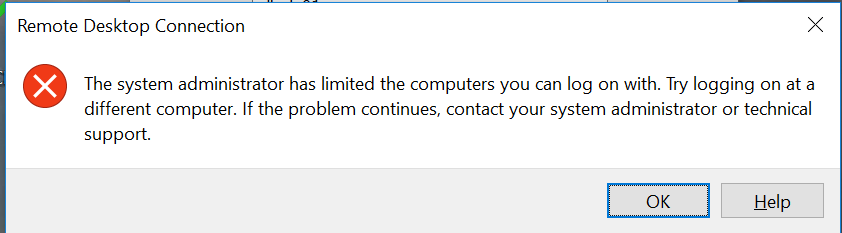
- The Service Desk account is login limited. Any machine you would like to RDP FROM (not TO - i.e. your own computer) using ffl\servicedesk will need to be added to a specific attribute in AD. AD Users & Computers: FFL --> AppLogins --> Service Desk --> Attribute Editor --> userWorkstations: (add computer/server name). If you don't do this, you may encounter the error message below:
- Navigate to Freshdesk and log in as an agent
- SSO will not work, so you will need to log in manually. Not currently synced with AD, so it may be an old password. If you cannot log in manually (i.e. you can't recall your old Windows password at the time your FD account was set up), you can reset your FD password via email. This will not affect your ability to log in with SSO on your regular computer.
- If necessary, Service Desk could be added to Freshdesk as an agent, which Nick did on 2/1/23 because he was fed up with this crap.
- Navigate to Settings --> Email --> edit --> Use your existing support email --> Sign into O365 as servicedesk@ffl.net
- Permission must be granted to Freshdesk to send/receive emails as ServiceDesk. Verify that Service Desk is set up as an Application Administrator in Azure AD (see Calendly article for details).
We last got the following error message on May 16, 2022, January 2023, June 15, 2023, and July 24, 2024:
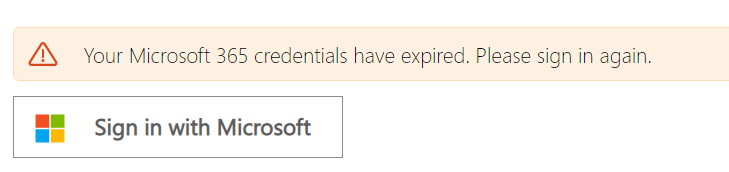
Not sure what triggers this, but successfully signed in and reauthenticated by following the steps above.
Was this article helpful?
That’s Great!
Thank you for your feedback
Sorry! We couldn't be helpful
Thank you for your feedback
Feedback sent
We appreciate your effort and will try to fix the article