FMHC staff (primarily the IT Service Desk) are in charge of assigning and maintaining Cleartouch teller numbers, not Fiserv. Requests to assign a teller number in Cleartouch must come from a manager or supervisor at the branch (i.e. a teller cannot request a teller number for themselves).
Currently, the CT Teller Numbers list is located in Teams: Fiserv Support team --> General channel --> Files tab
All teller numbers are assigned as four digits (Fiserv's maximum limit), with the first two digits indicating the branch number. All float tellers start with 00 as the first two digits of their teller number, which enables them to log in to Cleartouch at any branch.
It is important that no two employees at any one branch have the same last two digits of their teller number, to prevent any conflicts in Passport, the security portion of Cleartouch. Even in "virtual" branches (like back office departments that are not a physical branch), two employees with different teller numbers that end in the same two digits WILL cause a conflict.
Once a teller number is reserved on the spreadsheet, it may be added to the user's profile in Cleartouch --> Tasks --> Cleartouch Administration --> Define Users --> (search for user and click their name) --> add the teller number in the Teller Numbers field.
Tellers may regularly need access to balance the Glory cash dispenser/recycler, the vault, or the ATM. Each of these has a dedicated teller number with which the user may log into Cleartouch. You may add multiple teller numbers in their CT user profile separated by commas.
Standard numbering for these devices/locations across all FFL branches:
- 50 = Vault
- 51 = Vault (if the branch has a second one)
- 55 = Glory cash recycler
- 81 = ATM
- 82 = ATM (if the branch has a second one)
The teller number(s) must be removed from the user's access when they are done working at that branch. Leave the SD ticket open and let the manager know that you will be taking away those teller numbers beforehand.
Historically, Cleartouch audits have dictated that a teller number may not be reassigned to another user for 60 days, to provide for easy tracking when tracing transactions back to specific users.
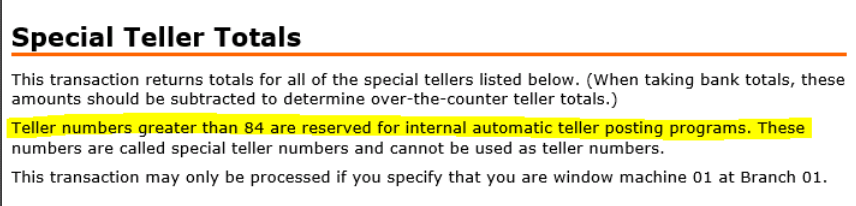
Note: Teller numbers greater than 84 should NOT be assigned to any employee - see details below.
Was this article helpful?
That’s Great!
Thank you for your feedback
Sorry! We couldn't be helpful
Thank you for your feedback
Feedback sent
We appreciate your effort and will try to fix the article