Adding an item to the FFL Intranet

Modified on Fri, Dec 27, 2019 at 10:39 AM

This example goes through how to add Example Form.pdf to the FFL Intranet in the Shared Information\Loan Service section.
  1. 1. Map the \\saturn\wwwroot drive to your computer
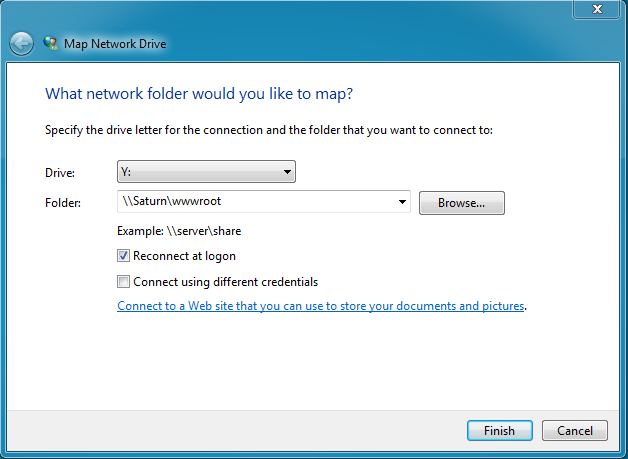
    (You will need Modify rights to make changes to the files on here)


  1. 2. Place the Example Form.pdf in the Saturn\Shared_Information\Loan Service folder

3. Navigate to the .mht or .htm file you need to edit (the .htm are compatible with both IE and Google Chrome, the .mht only work with IE)
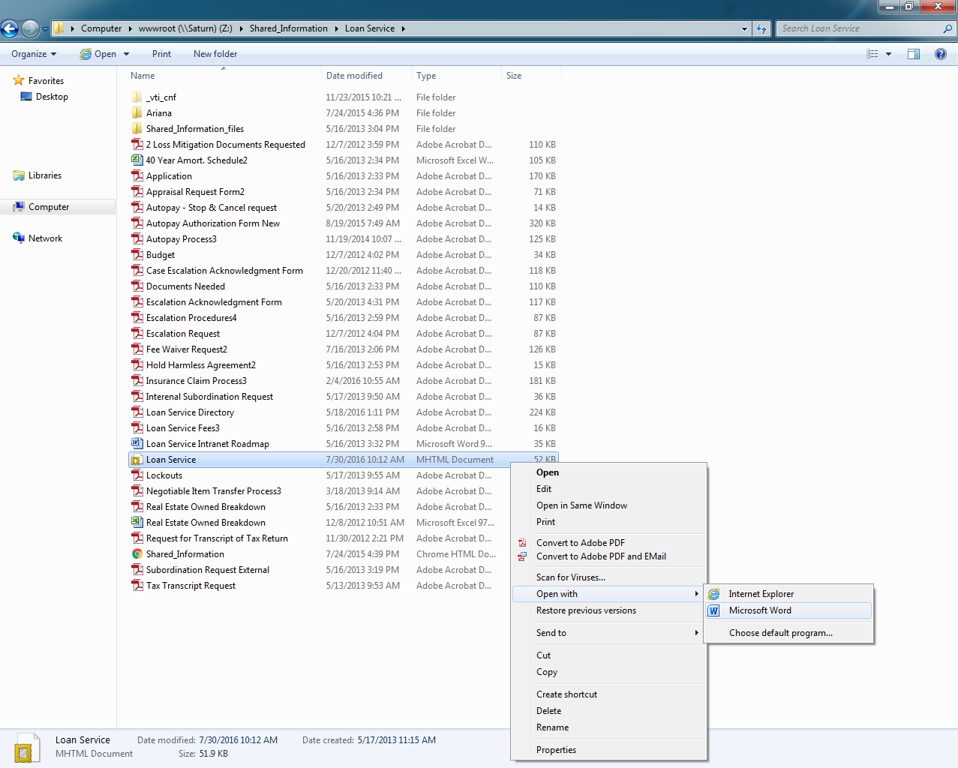
In this case, navigate to Saturn\Shared_Information\Loan Service\Loan Service.mht

- most of the other .mht files are found in Saturn\Shared_Information\Shared Information_new


  1. 4. Right click on the .mht or .htm file and choose Open With > Microsoft Word

  2. 5. Create a hyperlink for Example Form

    (hyperlink the Example Form.pdf)
  3. 6. Save and close the .mht file

The Example Form should now appear on the intranet. You may have to refresh the browser cache to notice the change.


Was this article helpful?

That’s Great!

Thank you for your feedback

Sorry! We couldn't be helpful

Thank you for your feedback

Let us know how can we improve this article!

Select at least one of the reasons
CAPTCHA verification is required.

Feedback sent

We appreciate your effort and will try to fix the article