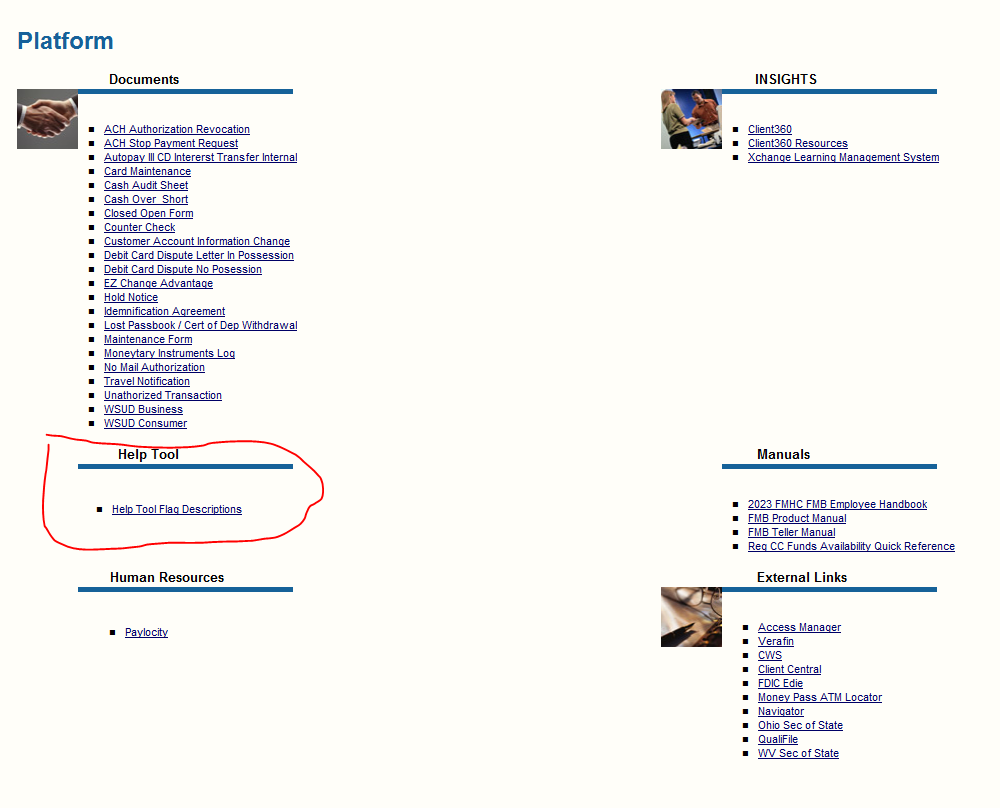
Like the intranet site, there are many links and documents posted directly on the Cleartouch Home Page (hereafter "CTHP"), which is what every user sees when they first log into Cleartouch. Different sections will appear based on the user's role and permissions.
Many documents that are linked on the CTHP point to our intranet server. To update a document, simply place the new document on the intranet server with the exact same name as the old file, so that no link needs to be updated.
To update the CTHP:
- Log into CT as admin
- Go to Tasks --> Cleartouch Administration --> Portal Content Management
- If you need to add/remove a specific item from a specific section of the CTHP, select the appropriate Content Area Name, make your changes, then click Submit
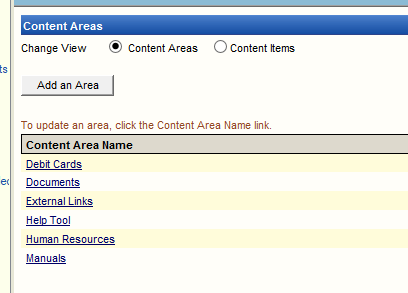
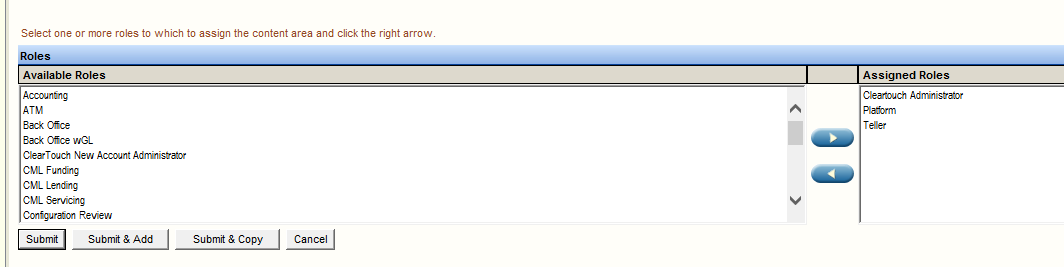
- Each Content Area is assigned to specific roles. Update as necessary:
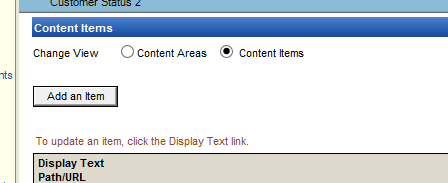
- If you need to change the name of a document or its link on the CTHP, change the radio button at the top to Content Items, scroll down to find the appropriate item, click on it, update its name and/or link, then click Submit
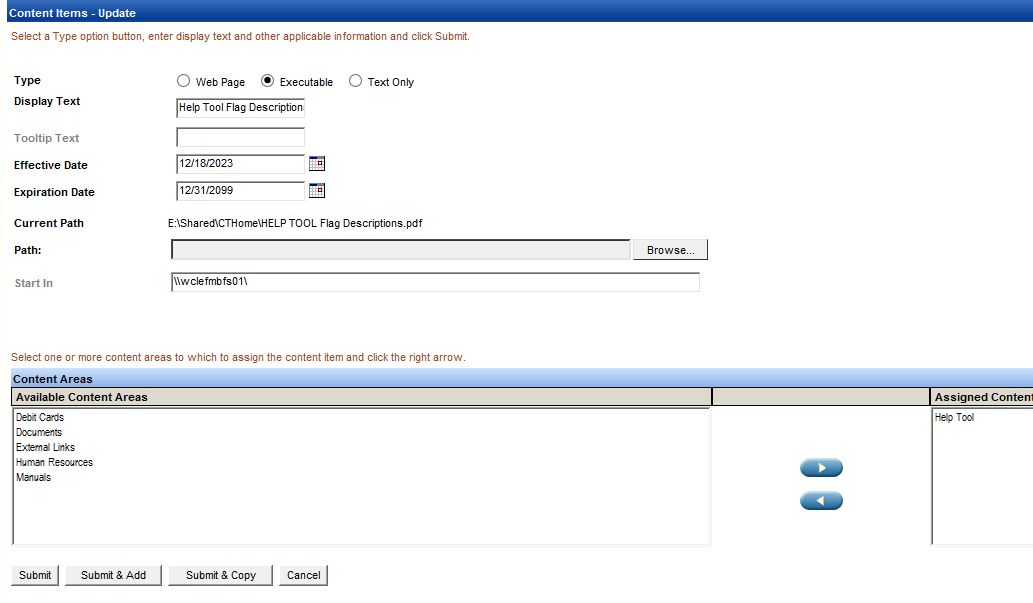
- To add a new item, click Add an Item, fill out the necessary info:
- Display Text field: Enter name of the document
- Effective Date: Enter the date you want it to start being visible to users
- Set the expiration date to 12/31/2099
- Check the box to "Open In New Window" (if desired)
- Add it to the specific content area(s)
- Click Submit
Completely close and re-open Cleartouch to verify that the change is now appearing:
NOTE: The item "type" at the top can be Web Page (for links you wish to open in a web browser) or Executable, which can be a file, like a PDF, that you would like to have open in Adobe locally on the user's computer.
Changes should appear for the end users after they close and re-open CT.
Was this article helpful?
That’s Great!
Thank you for your feedback
Sorry! We couldn't be helpful
Thank you for your feedback
Feedback sent
We appreciate your effort and will try to fix the article