FFL employees may need to receive a First Mutual Holding Company email address in addition to their current FFL address, or an existing FMHC employee may need an affiliate alias added to their account for various reasons. To make the addition, follow the instructions below.
In Active Directory, go to the Attribute Editor tab for the user object and find ProxyAddresses. You will need to edit this to add the FMHC email address as SMTP:[userid]@firstmutualholding.com. You will then need to remove the existing @ffl.net email address and re-add it as smtp:[userid]@ffl.net. Uppercase SMTP = primary email address for the account, lowercase smtp = secondary email address for the account. Example:
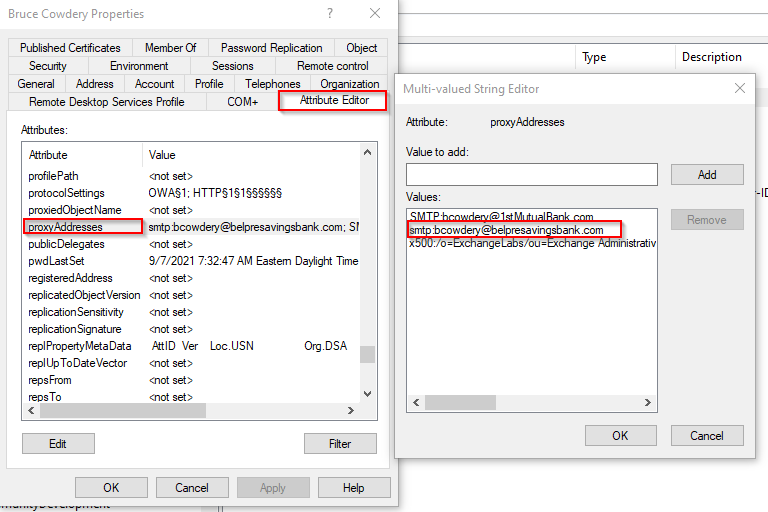
You can have multiple secondary (lowercase "smtp") proxy addresses, but only one can be primary (capital "SMTP").
If Attribute Editor is not appearing as a tab, make sure you open the user's account in AD by finding them in the hierarchy (i.e. it will not work if you just Search the employee's name).
If setting the new FMHC address as primary, also change the user's email address in AD under the first "General" tab so it appears in the intranet phone directory and in Outlook.
Was this article helpful?
That’s Great!
Thank you for your feedback
Sorry! We couldn't be helpful
Thank you for your feedback
Feedback sent
We appreciate your effort and will try to fix the article