Setting an IP Address DHCP Reservation

Modified on Wed, Nov 27, 2019 at 2:44 PM

Instead of setting a static IP address on a computer, you can set a DHCP reservation in Microsoft Management Console so that a device with a specified MAC address will always have a given IP reserved to use. This can be helpful when replacing a branch teller computer that uses Cleartouch, for example, so the new machine can use the same IP address as the old one and reconfiguration of a new IP address for Cleartouch will not be necessary.
  1. 1. Open Microsoft Management Console

    MMC can be found at: C:\Windows\System32\mmc.exe
    **Run using your DAA account
  2. 2. Navigate to old machine name

    In a new Console window:
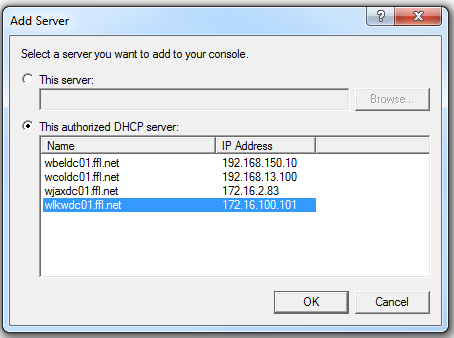
    File menu --> Add/Remove Snap-in... --> Click DHCP in the list, click Add and OK. Click on DHCP, go to the Action menu and select Add Server. Choose the authorized DHCP server where the old machine is located (e.g. WLKWDC01.ffl.net is FFL/Lakewood) and click OK.

    DHCP --> [server] --> IPv4 --> [location of machine] --> Reservations. Find and right-click on old computer name and choose Properties.
  3. 3. Change MAC Address

    Change the MAC address on the old machine name to the MAC address of the new machine.
    This can be found in Lansweeper (navigate to new machine: Configuration tab --> Network --> Network).
    When you enter the MAC address in MMC, remove the colons and click OK. The reservation has been set.

Was this article helpful?

That’s Great!

Thank you for your feedback

Sorry! We couldn't be helpful

Thank you for your feedback

Let us know how can we improve this article!

Select at least one of the reasons
CAPTCHA verification is required.

Feedback sent

We appreciate your effort and will try to fix the article