Occasionally, you may find a company laptop that is unable to connect automatically to the FMHC_Corp WiFi. If it prompts for a password, see the steps below to manually install the corporate WiFi profile that contains the password built in. (Guest WiFi will connect without a password.)
1. Launch Software Center
2. Under Applications, click on the FMHC Wireless Profile option
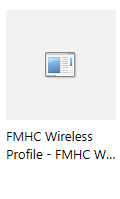
3. Click the green Install button. When complete, you can test the WiFi to make sure it connects automagically.
If you encounter the following error in Software Center, follow the steps below.
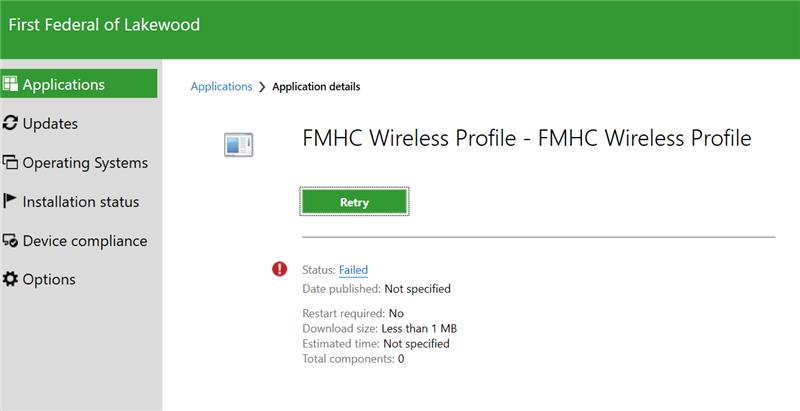
In an elevated Command Prompt, run this command:
This will install the FMHC_Corp wireless profile, then you can test to verify it is working properly.
Was this article helpful?
That’s Great!
Thank you for your feedback
Sorry! We couldn't be helpful
Thank you for your feedback
Feedback sent
We appreciate your effort and will try to fix the article