Occasionally, Retail Ops or the branches may report that their batches are not appearing in Web Capture.
To verify that Teller Capture check batches are being delivered/processed properly through the branch's Store & Forward server, check the following on the appropriate SAF server:
1. Launch (IBM) Data Studio as admin
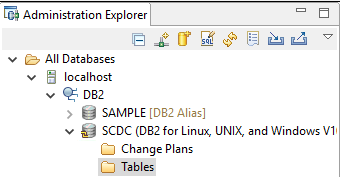
2. Navigate to localhost --> DB2 --> SCDC (right-click and Connect as db2admin account - pwd stored in KeePass) --> Tables
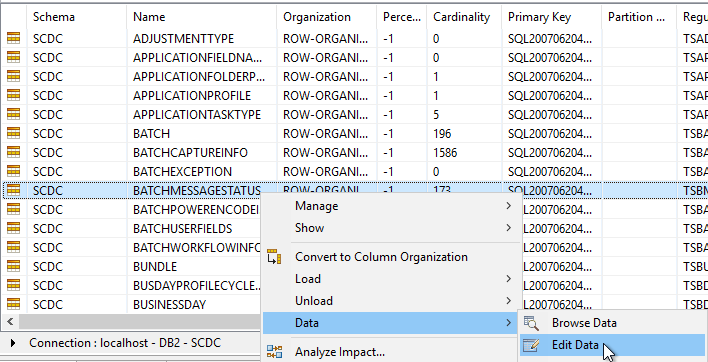
3. In the Name column, find BATCHMESSAGESTATUS --> right-click --> Data --> Edit Data
4. Both the OpenBatchStatus and CloseBatchStatus should read "Sent." If not, or stuck on "readytosend," there may be a firewall issue. Check to make sure no traffic is being blocked to Fiserv. Otherwise, this might just mean that the Apache-SF service is hung up.
Note: If you are only seeing 500 rows of data, you may not be seeing the most recent information. Click this button in the top right corner to Filter the data:

Click "Add All" to select all columns, then change "Rows to Return" from 500 to 5000. Click OK, then you should see all recent data in the list.
You can also check the StoreAndForwardMaster log in C:\Program Files\Carreker\Store and Forward\logs (scroll down to the bottom of the document for the latest information) to see the batch transmission status. If any changes were made, i.e. traffic previously blocked now allowed on the firewall, restart the Apache-SF service ONCE (safe to do one time quickly, but if you do it more than once, the branches might notice and start getting error messages) and check this file again in about three minutes.
If the batches are still stuck on "readytosend," verify that the endpoint is set correctly in the ApplicationResource.properties file. This could have been mis-entered if there was a reset SAF app update installed on the server.
There may be an occasion when we need to force close open batches on a SAF server. In these situations, Fiserv recommends that we contact them first to do a remote session into our SAF server and see if they can just change the Transaction Status to "sent" in order to get the stuck batch to go through.
Otherwise, Fiserv has provided instructions for this process (see below, also attached) by using the "Stuck Batch" batch file in C:\Fiserv on the server. This should only be run after hours as it will stop a necessary service and kick out tellers during the work day.
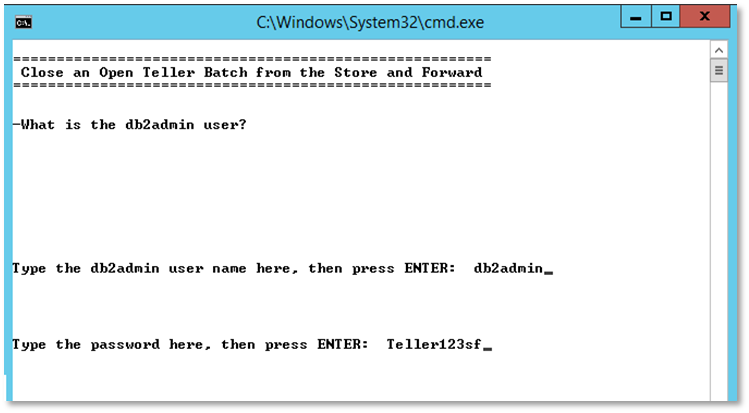
- Run the script as an Administrator. Enter the db2admin user and the password for db2admin.
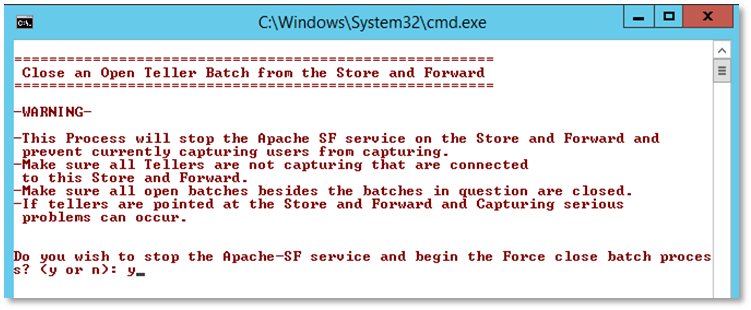
- You will see a warning screen in order to continue with the script. This will stop the Apache SF service so you don’t want any tellers to be scanning at this time.
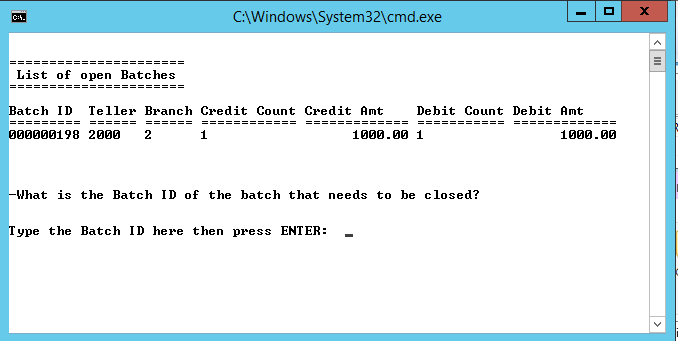
- Once it stops the Apache-SF service, it will connect to the database and list all open batches and the AuxBatchID or Teller ID tied to those batches. Make sure you know this information beforehand so you know exactly what batch to close (find the AuxBatchID in the "Batch" table). When entering the Batch ID, include the leading 0s so the whole batch ID is 9 Digits long. Since we can have duplicate batch IDs, you will then have to enter the Teller Number or AuxBatchID for this batch.
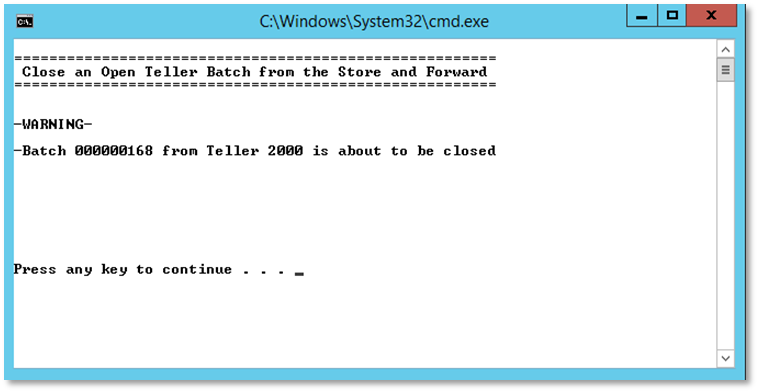
- You will have one last warning screen to close the batch file if you do not wish to continue. If you press any key, it will attempt to run the scripts.
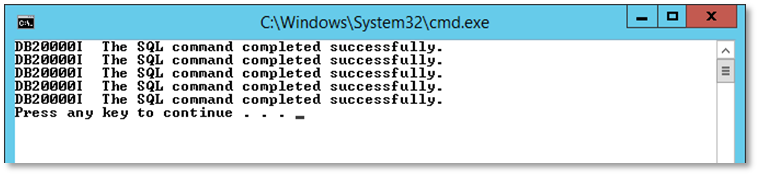
- If Successful, you will see 5 instances of The SQL Command completed successfully. After you press any key, it will ask if you need to close any other batches. If you hit y, it will restart the process of selecting Batch IDs and Teller Numbers. If you hit n, it will start the Apache-SF Service and close. If it was NOT successful, try again and use the AuxBatchID number in Step #3 if you had used the Teller Number originally.
Was this article helpful?
That’s Great!
Thank you for your feedback
Sorry! We couldn't be helpful
Thank you for your feedback
Feedback sent
We appreciate your effort and will try to fix the article