In July 2025, Kim Platt (Smartsheet admin) encountered an issue where she continuously got prompted for admin consent when trying to add a Smartsheet tab to a project in Teams. All admin consent requirements appeared to be configured correctly in O365 and Teams administration, but she was still getting prompted.
After opening a ticket with Smartsheet, their support pointed to the resolution.
To add the Smartsheet tab to their Teams channel, you can advise customers to follow these steps:
- From Microsoft Teams, select the channel you want from the left panel.
- In Teams, select + (plus sign). You get an Admin approval prompt. If you are not an Admin and click Grant Permissions, your access will be denied. Instead, click on Skip.
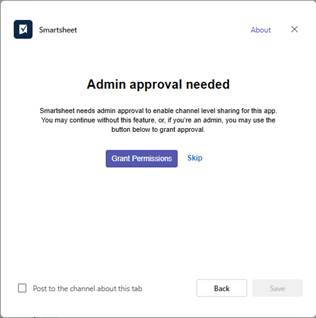
From <https://teams.microsoft.com/v2/>
- Select Add a tab > Smartsheet for Teams > Accept.
- To grant Smartsheet access to integrate with Microsoft Teams, select Connect to Smartsheet > Allow. If prompted, sign in to your Smartsheet account.
- Search for or scroll to the Smartsheet item you want to use and select it.
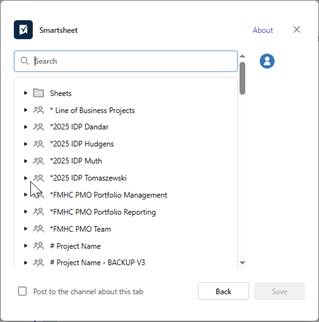
From <https://teams.microsoft.com/v2/>
- Select one of the following options: Share, Publish, or Don’t Share.
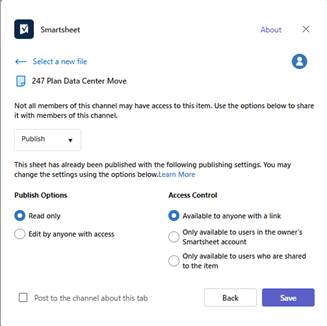
From <https://teams.microsoft.com/v2/>
- If you choose to Share or Publish, set how people in the channel can interact with the Smartsheet item by specifying the sharing permission levels or by making it read only or editable by anyone. (More information on these options in the section below.)
- Select Save.
You’re done! The Smartsheet item will be available in its own tab to anyone subscribed to your channel. People in your channel can view and edit (if you’ve allowed editing) Smartsheet data within Microsoft Teams.
Was this article helpful?
That’s Great!
Thank you for your feedback
Sorry! We couldn't be helpful
Thank you for your feedback
Feedback sent
We appreciate your effort and will try to fix the article