Beginning March 2023, the FFL branches started using DynaCore in place of Dynacash (Lakewood was first on 3/28/23).
Benefits of this new system:
- Each branch has freed up one network port, reducing network security risk. Previously, the Glory keypad and RBG/cash recycler were both on the network. Now, the keypad has been retired and replaced by the new black DynaCore box, and the cash recycler plugs directly into this new device, taking its direct network connection away. This reduces network vulnerability and helps during penetration testing/scans. Even if a bad guy could reach the black box, all they could do to it is turn it on and off.
- The black DynaCore box generally has an IP address ending in .31. The two exceptions are Lakewood and Gordon Square branches (see this spreadsheet for details: G:\Shared\AppFiles\DynaCore\FFL Dynacore IPs.xlsx)
- The box does not need to take up space on the teller line counter as the keypad did. It can be Velcroed to part of the counter or to the side of the cash recycler to be out of the way.
- Up to six (6) workstations at each branch can now connect directly to the Glory machine simultaneously. Previously, only the two that were directly plugged into Glory via USB could connect to it.
- When a branch has more than six workstations, DynaCore can be installed on all PCs, but it can only be open/logged into by six users at a time. User will receive an error message if they try logging in from a seventh computer.
- The Viewer app may no longer be needed, as reports can be viewed from the Dynacore app.
- The DynaCash program can be uninstalled from all branch workstations. DynaCore still utilizes DynaCash (many functions are still the same), but it is a separate instance that lives within C:\Dynacore and is not detectable in Add/Remove Programs.
- The branch workstations point to the DynaCore box, so they are no longer reliant upon a workstation to act as the "server." All boxes point to a main central server at the Cleveland data center (WCLEDyna01/ 192.168.101.8). The beauty of this is that, if connectivity to the central server is lost, the branch can continue to operate Glory simply through the black box until connectivity to the central server is restored. The box has an SD card that can store logs for up to four months! Users will just see a warning message that the server is offline, but they can simply click OK and use DynaCore as they normally do. So, the branch can never really be "down," unless something happens to the black box.
- Viewer logs will also be stored on this server. Access to Viewer logs can only be controlled by which computers it is installed on. With this centralized server, all employees with Viewer on their PC will be able to view logs for any branch, not just their own.
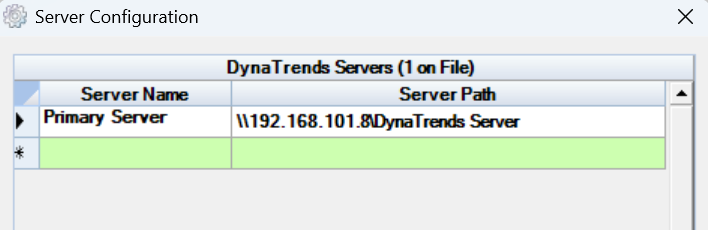
- As of February 2026, DynaTrends Viewer has replaced DynaLog Viewer. Install from here: G:\Shared\AppFiles\DynaCore\New\OneDrive_2026-01-07.zip\DynaCore v2.4.15 Production\DynaTrends Viewer v3.0.0 Then, in C:\DynaTrends Viewer, launch Viewer Config, and set this path in the Server List:
- When there are firmware updates for the black DynaCore box, the version of DynaCore software on the branch workstations must match exactly/be compatible, otherwise it will not work. Cornelius should provide details on this when firmware updates are available.
Notes that may be helpful to branch staff:
- Hotkey Tip #1: Even when the DynaCore app is minimized on their screen, but running in the background, the user can hit Ctrl-M on their keyboard for a "manual" transaction, and it will take them directly to the screen to select a Deposit or Withdrawal.
- Hotkey Tip #2: During a transaction in Cleartouch, hitting F10 (deposit) or F11 (withdrawal) will take them directly to the appropriate screen in DynaCore.
- Hotkey Tip #3: Hitting Ctrl and ~ (tilde) is the shortcut for Duress, which will eject a stack of money from the Glory machine during a robbery.
- The following hotkeys are no longer in use: F12, Ctrl-D and Ctrl-W (replaced by Ctrl-M for "Manual Transaction")
- Many functions in DynaCore require dual control, so a prompt will appear for another user to enter their credentials to proceed. One restriction set at most branches is a $10,000/transaction limit for all users (tellers up through branch managers).
- Consult the DynaCore Ops Guide & Glory Teller Manual on the Cleartouch homepage for further details on the process.
In order for DynaCore to function properly after it is installed*, each branch workstation needs to have the correct configuration files in place. There are three that will need to be copied:
- DynaCore.ini file (BRANCH SPECIFIC)
- FROM: G:\Shared\AppFiles\DynaCore\DynaCore ini config files\[branch]
- TO: C:\DynaCore
- DynaCash.mdb AND DynaCash.ini files (FFL-wide, not branch specific)
- FROM: G:\Shared\AppFiles\DynaCore
- TO: C:\DynaCore\DynaCash
Within the DynaCore.ini file, these parameters need to be set for the program to work:
- AD Domain=ffl.net/DC=ffl,DC=net
- DynaCore IP= [IP address of the DynaCore box] (this setting makes the file branch specific)
- Client Type= [0 or 1] -- 0 = Side A / Port 9001 (left side of teller line) or 1 = Side B / Port 9002 (right side of teller line) -- e.g. Lakewood workstations are split evenly, so there are three on the "left" and three on the "right" (this setting makes the config file workstation specific)
- If a branch has more than six workstations, you should still split the branch in half as much as possible. 0 (left) is the default, so you will just need to edit the config file on the "right" workstations to a 1.
REPLACEMENT branch computers: After DynaCore is installed, simply copy the DynaCore.ini file from C:\DynaCore on the old workstation to the new one, and the DynaCash.mdb & DynaCash.ini files from C:\DynaCore\DynaCash on the old workstation to the new one.
*If needed, the DynaCore app can be installed manually via the DynaCoreSetup.exe in this directory: G:\Shared\AppFiles\DynaCore\DynaCore v1.6.35 Production
Permissions are handled through new "Dynacore" security groups in Active Directory based on the user's role. In order for group membership changes in AD to take effect in DynaCore, the black box needs to be power cycled. To prevent users from having to do this manually, there is a parameter in the DynaCore.ini config file that automatically triggers a reboot of the black box every day at 5:00 am: Core Reboot Time=0500
If the DynaCore app, for whatever reason, is not able to communicate with AD and is preventing login, you can use the DynaCore "level2" user ID as a local admin account. Password from Tony is 11872130
If the DynaCore controller is offline/inaccessible over the network because its IP address has changed, you won't be able to log into DynaCore (username/password fields are greyed out). To work around this, you can log into the controller locally/via USB from the one computer that is still plugged in via a USB cable. On that one computer, change the DynaCore.ini config file "Enable LAN" option from True to False. Then, you can log in locally with the addon account (text Tony to ask him for the password, as this changes regularly). Then, you can get into the IP config settings and change the IP/gateway as needed, if the VLAN has changed.
For issue escalation, Cornelius may be contacted at (800) 752-5868 option 3 (service calls) or the branch can submit a ticket through their online portal: https://app.equips.com/login
ISSUES / TROUBLESHOOTING:
- See this other article about troubleshooting "TCP" errors.
- Display Issue: Occasionally, a teller may open DynaCore and see the icon in their taskbar, but the app window does not actually appear on the screen. Maximizing in Task Manager may have no effect. To resolve, open the DynaCore.ini config file and change the following X & Y coordinates to zero (0):

- If you encounter a random DynaCore issue and you determine a reinstall is necessary, you may encounter this error when trying to uninstall the program via Control Panel:
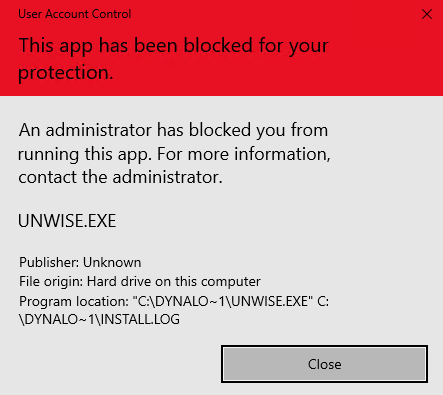
Per Engineering, the best way to get around this is to launch Command Prompt as administrator, change the directory to C:\DynaCore, and run the Unwise.exe uninstaller application through cmd. It should go through that way.
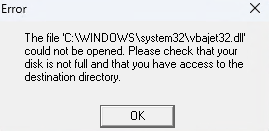
If you encounter the following error about vbajet32.dll during installation on a Windows 11 computer, simply run the installer in Windows 7 compatibility mode.
Was this article helpful?
That’s Great!
Thank you for your feedback
Sorry! We couldn't be helpful
Thank you for your feedback
Feedback sent
We appreciate your effort and will try to fix the article